What You're Building
In this tutorial we are building a smart semantic search system that can ingest content from multiple sources (RSS feeds, JSON files, text documents), generate semantic embeddings, and return intelligent search results through a clean web interface using Docker, Ollama for LLM capabilities, and Qdrant for vector storage. Think of it as your own private Google, trained on your content, that actually understands context and meaning, not just keywords.
Understanding the Architecture
Before diving into configuration files, let's understand what we're building:
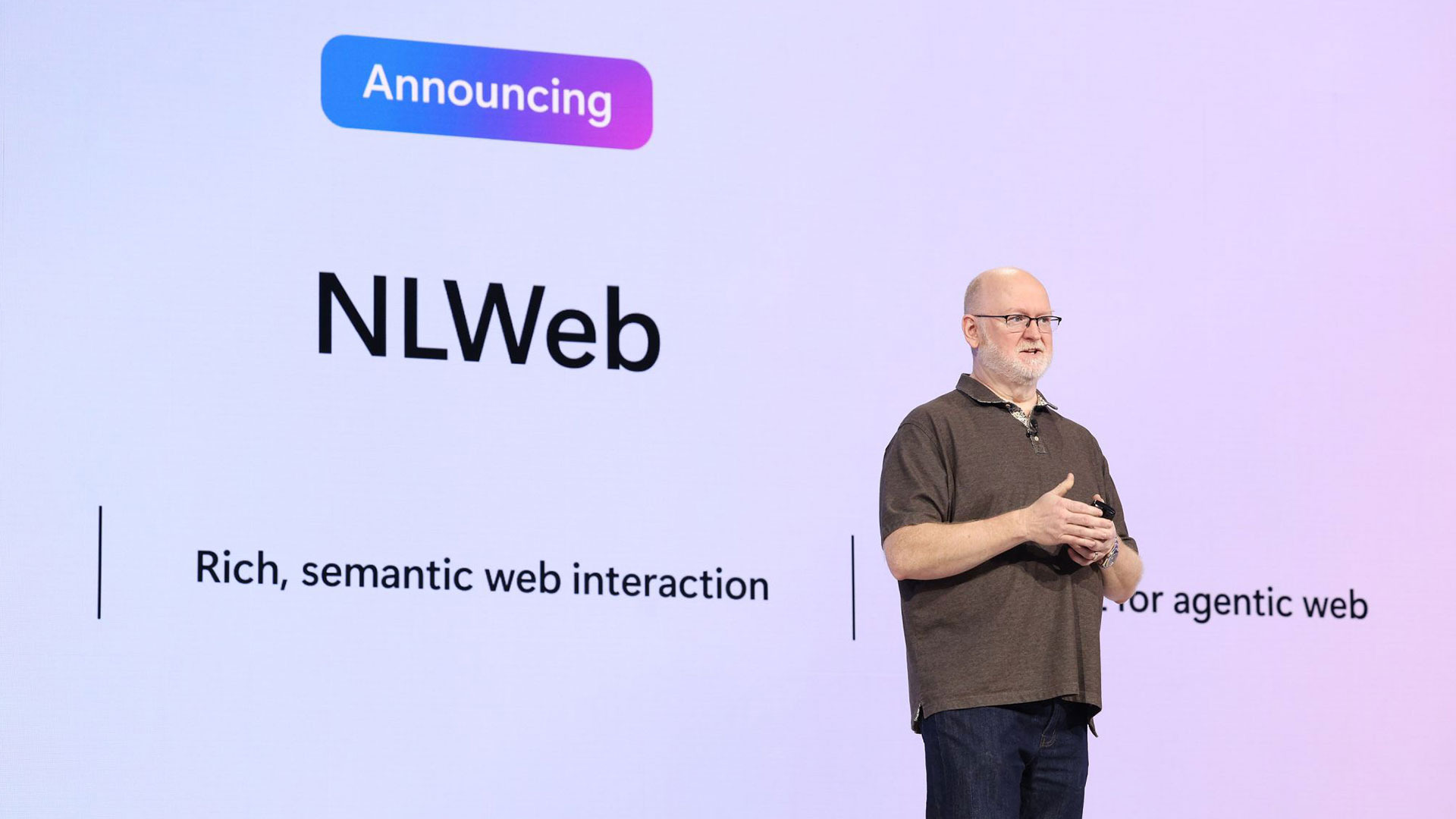
NLWeb is an open-source RAG (Retrieval-Augmented Generation) framework that combines vector search with large language models (LLMs). It acts as the orchestration layer, coordinating between:
- Ollama: Provides both the LLM (for generating responses) and embedding models (for converting text into vector representations)
- Qdrant: A high-performance vector database that stores and searches through embeddings
- Docker: Containerizes everything for consistent, reproducible deployments
The workflow is elegant: content gets embedded into vectors, stored in Qdrant, and when users search, NLWeb retrieves relevant chunks and uses the LLM to generate contextual answers.
Prerequisites
Before we begin, ensure you have installed the below:
Step 1: Install Docker Desktop
Download and install Docker Desktop from the official documentation. There's a checkbox to avoid during the installation on Windows: "Use Windows containers instead of Linux containers." Leave this unchecked. We need Linux containers for this stack.
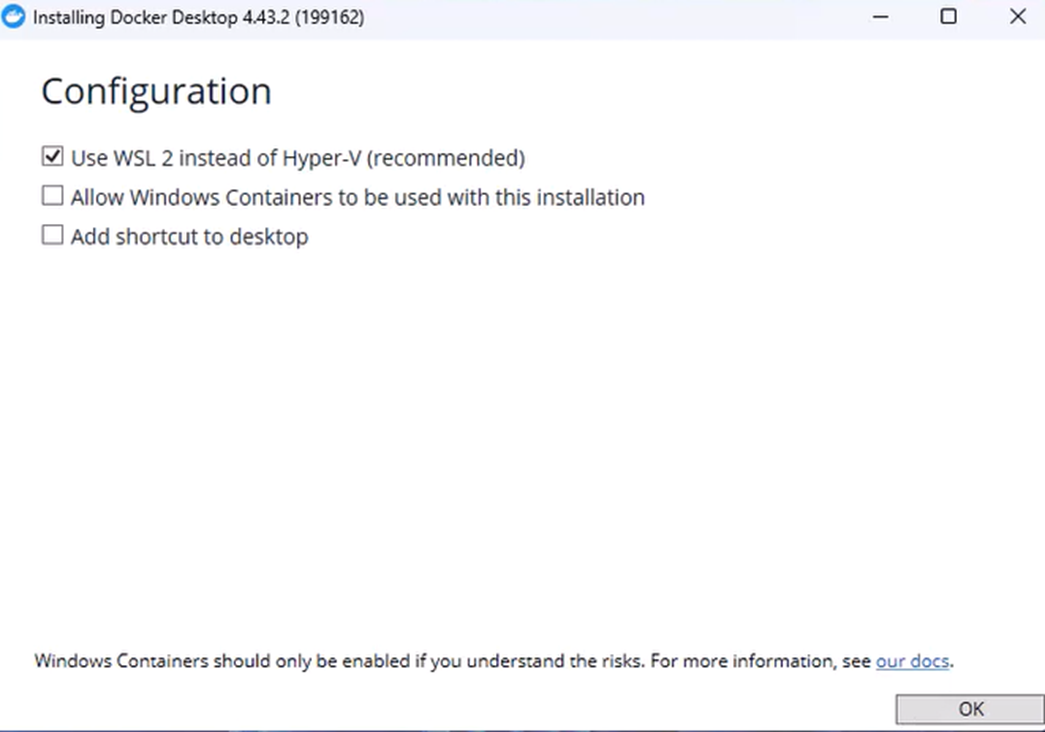
After installation, verify Docker is running:
docker --version
You should get something like: Docker version 24.0.x, build xxxxx

Step 2. Install Ollama and verify it is running
We're using a remote Ollama instance to offload computational work to a more powerful machine (still a local machine). This architecture allows your development machine to remain lightweight while the GPU-intensive work happens elsewhere. This is why in the screenshots and the code we share in this article you will see the ollama url accessed through IP address as http://192.168.2.11:11434. If you install ollama on your local development machine you should access it with the default url: https://localhost:11434.
Download and install Ollama from the link below
https://ollama.com/download
Pull Ollama models for embedding and retrieval (LLM)
Pull the models you want to use for the embedding and for the retrieval. Before pulling the models make sure you check the system requirement for each model and make sure your local machine meets the requirements.
For this setup, we'll use:
- Embedding model:
nomic-embed-text (alternatively bge-m3) - LLM (high):
qwen3:4b (or qwen3:14b for better quality) - LLM (low):
qwen3:4b
The "high" and "low" distinction allows NLWeb to use different models for different complexity tasks, optimizing both quality and performance.
Verify Ollama is running
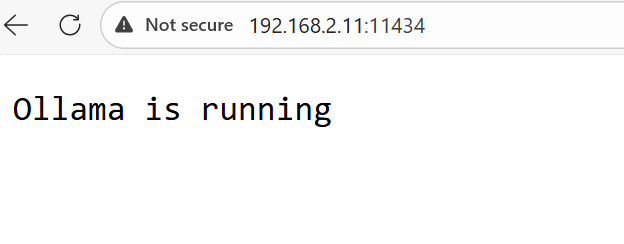
To make sure that Ollama is running navigate to its default port https://localhost:11434
On our side, as mentioned above, we have installed Ollama on a remote powerful local machine and we access it through an IP address.
You should see:
Ollama is running.
This confirms the Ollama service is accessible.
To check the LLM models installed access: http://localhost:11434/api/tags
You'll see JSON output listing available models - something like:
{
  "models": [
    {
      "name": "qwen3:14b",
      "modified_at": "2025-08-14T10:27:11.6735263+02:00",
      "size": 9276198565,
      "parameter_size": "14.8B"
    },
    {
      "name": "bge-m3:latest",
      "modified_at": "2025-08-14T10:20:46.1659263+02:00",
      "size": 1157672605,
      "parameter_size": "566.70M"
    }
  ]
}
Step 3: Clone the NLWeb repository
https://github.com/nlweb-ai/NLWeb/tree/main
This repository contains everything: the Python backend, configuration templates, Docker setup, and even a frontend interface.
Step 4: Configuring NLWeb for Ollama
Create the .env file
Copy the env.template file and rename it to .env
This is where we will define and store our environment variables.
In the .env file make sure that you have the Ollama url set correctly - e.g.:
OLLAMA_URL=http://localhost:11434
This environment variable tells NLWeb where to find and connect to your Ollama instance.
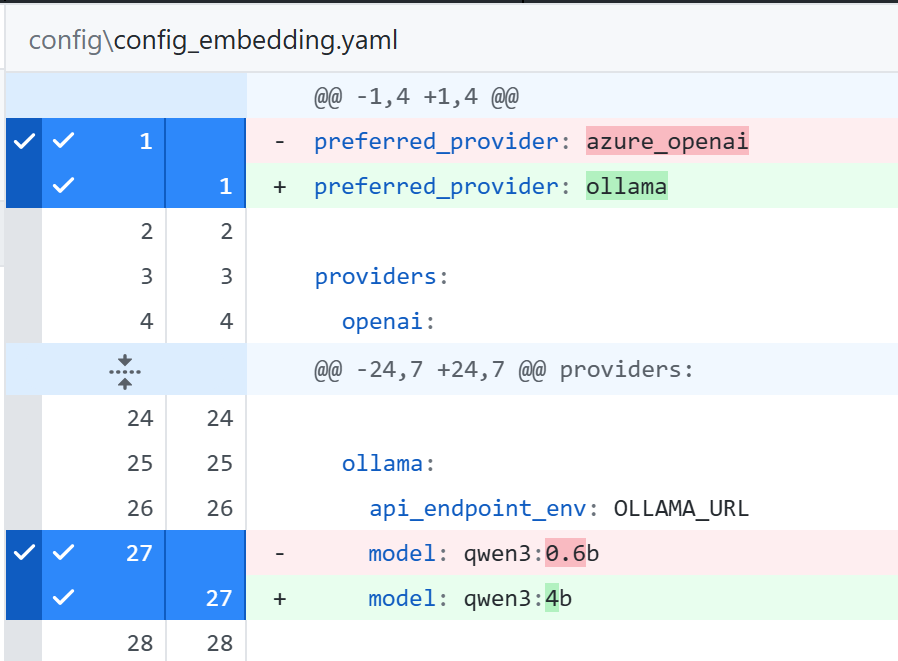
Set Ollama as the embedding provider in config_embedding.yaml file
The config_embedding.yaml file controls how text gets converted into vector representations, defining which embedding provider (OpenAI, Ollama, Gemini, etc.) to use and which specific model generates the numerical embeddings that enable semantic search. This configuration is critical because the embedding model's output dimensions must match your vector database settings, and different models offer trade-offs between speed, accuracy, and multilingual support.
In the config/config_embedding.yaml file set the preferred_provider to ollama.
Set the model to nomic-embed-text. This model produces 768-dimensional vectors and works well for general-purpose semantic search. Alternatively, you can use bge-m3 (1024 dimensions) - slightly better multilingual performance, A bit more accuracy for complex queries, but slower embedding generation and more storage.
preferred_provider: ollama

ollama:
  api_endpoint_env: OLLAMA_URL
  model: nomic-embed-text
Set Ollama as the LLM in the config_llm.yaml file
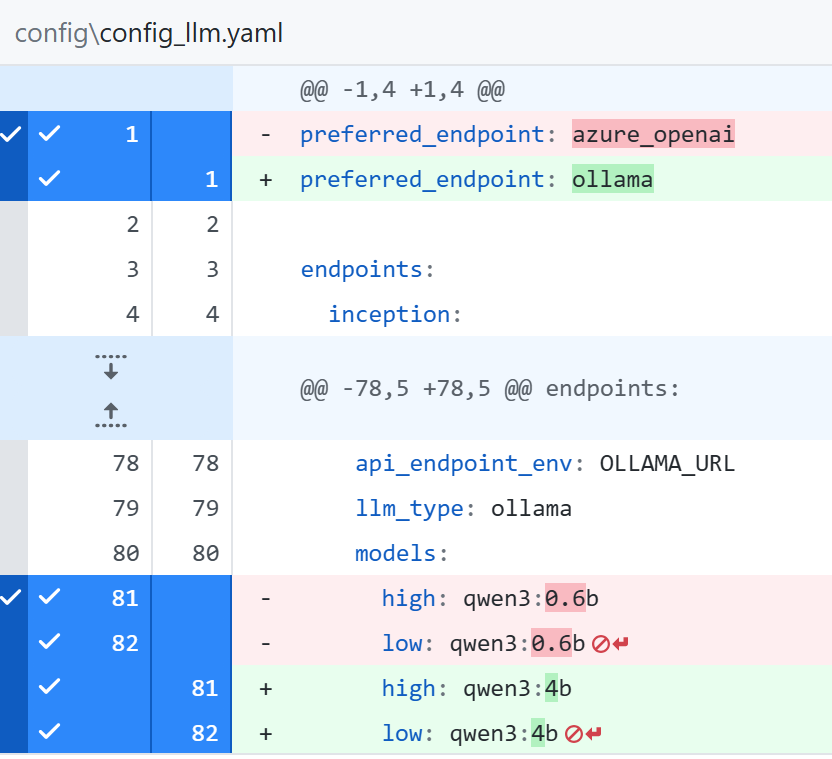
The config_llm.yaml file configures which large language model (LLM) generates the intelligent responses and summaries in your search results, allowing you to specify different models for 'high' complexity tasks (detailed analysis, complex queries) versus 'low' complexity tasks (simple lookups, quick answers) to optimize both quality and performance. This dual-model approach lets you balance resource usage by reserving more powerful models for queries that truly need them while using faster, lighter models for straightforward searches
In the config/config_llm.yaml file by default the LLM model is set to
azure_openai. Set it to ollama and update the model to qwen3:4b
preferred_endpoint: ollama

ollama:
  api_endpoint_env: OLLAMA_URL
  llm_type: ollama
  models:
    high: qwen3:4b
    low: qwen3:4b
qwen3:4b is a solid choice for this setup for several reasons:
- Efficient size: At 4 billion parameters, it's small enough to run smoothly on consumer hardware while still providing quality responses
- Fast inference: Generates responses quickly (typically 1-3 seconds), which is crucial for search applications where users expect near-instant results
- Good multilingual support: Handles multiple languages reasonably well, useful if your content isn't English-only
- Low memory footprint: Requires only 4-6GB of RAM, making it accessible without expensive GPU infrastructure
- Recent model
Additionally:
- It strikes the sweet spot between quality and performance for a search assistant role (not creative writing or complex reasoning)
- For semantic search use cases, you don't need the absolute best LLM - you need one that's fast, coherent, and can summarize retrieved documents effectively
- It's widely available in Ollama's library, making setup straightforward
- You can easily upgrade to qwen3:14b or qwen3:32b later if you need better quality and have more resources
qwen3:4b also works well in combination with the nomic-embed-text
Set Ollama client package in requirements in requirements.txt file
To finish up with the settings for ollama, open the \code\python\requirements.txt file and uncomment the line
ollama>=0.5.1
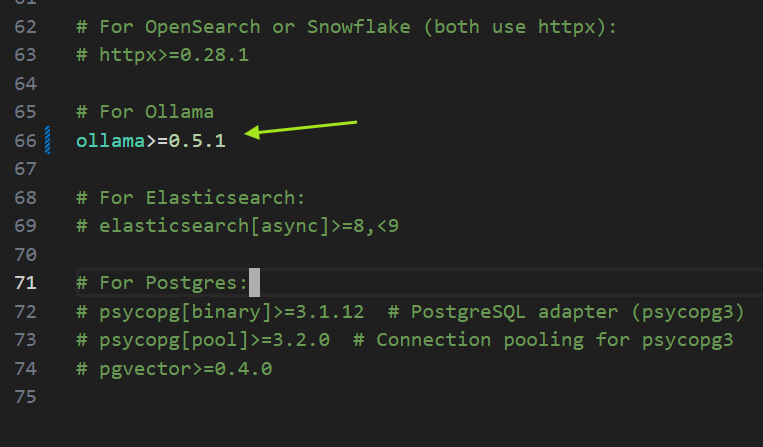
This Python package is essential for communicating with Ollama. Without it, you'll see "No module named 'ollama'" errors later.
Step 5: Setting Up Qdrant Vector Storage
NLWeb supports two Qdrant storage mechanisms:
- qdrant_local: File-based storage in
data/db/ (doesn't appear in Qdrant's web interface) - qdrant_url: Server-based storage (full Qdrant instance with web UI)
We're using the server approach because it provides better visibility, debugging capabilities, and production-readiness.
Enable Qdrant client package in requirements.txt file
Edit code/python/requirements.txt and ensure this line is uncommented:
qdrant-client>=1.14.0
The qdrant-client is the Python library that allows NLWeb to communicate with your Qdrant vector database. Without it, your application cannot talk to Qdrant.
NLWeb supports multiple vector database backends, so the requirements.txt file has different clients commented out by default. You only install the ones you're actually using to keep the Docker image lean.
If you build the Docker image without uncommenting this line, you'll get runtime errors like:
ModuleNotFoundError: No module named 'qdrant_client'
ValueError: No valid endpoints available for search
The application will start, appear to be running, but fail immediately when it tries to search or store vectors because it can't import the Qdrant client library.
Configure Retrieval Endpoint in config/config_retrieval.yml file
The config/config_retrieval.yml file defines where and how NLWeb stores and retrieves vector embeddings, specifying the write_endpoint (which vector database to use for storing new data) and configuring connection details for each available storage backend like Qdrant or local file storage. This is where you tell NLWeb 'use the Qdrant server at this URL with this collection name' making it the routing configuration that connects your embedding pipeline to your chosen vector database.
In the config/config_retrieval.yml file set the write_endpoint to qdrant_url, make sure it is enabled: true. You can also set the index name (the collection name). We will leave the default value nlweb_collection
Disable file-based storage.
write_endpoint: qdrant_url

qdrant_url:
  enabled: true
  api_endpoint_env: QDRANT_URL
  index_name: nlweb_collection
  db_type: qdrant

qdrant_local:
  enabled: false  # Disable file-based storage
Configure Conversation Storage in config/config_conv_store.yaml file
The config/config_conv_store.yaml file manages conversation storage and vector database settings for the NLWeb application, defining the default_storage endpoint and critically specifying the vector_size parameter that must exactly match your embedding model's output dimensions (768 for nomic-embed-text, 1024 for bge-m3, default value 1536 etc.). This configuration also controls whether to use local file-based storage versus a remote Qdrant server - making it essential for both correct vector storage and optimal search performance.
Open config/config_conv_store.yaml and configure:
default_storage: qdrant_remote

qdrant_remote:
  enabled: true # enable server based storage
  api_endpoint_env: QDRANT_URL
  index_name: nlweb_collection
  vector_size: 768  # Critical - must match embedding model
  db_type: qdrant

qdrant_local:
  enabled: false  # Disable file-based storage
Step 6: The Critical Vector Size Match
This is the most common source of frustration: your embedding model's vector size MUST match your Qdrant collection's vector_size configuration. Mismatches cause cryptic errors like:
ValueError: All endpoint searches failed
qdrant_client - ERROR: Unexpected Response: 500 (Internal Server Error)
OutputTooSmall
Check Your Embedding Model's Vector Size
Run this PowerShell command where you add the name of the embedding model you use (e.g. nomic-embed-tex):
$response = Invoke-RestMethod -Uri http://192.168.2.11:11434/api/embeddings -Method Post -Body '{"model":"nomic-embed-text","prompt":"test"}' -ContentType "application/json"
  $response.embedding.Count
For nomic-embed-text, this should return 768

Update Qdrant Configuration
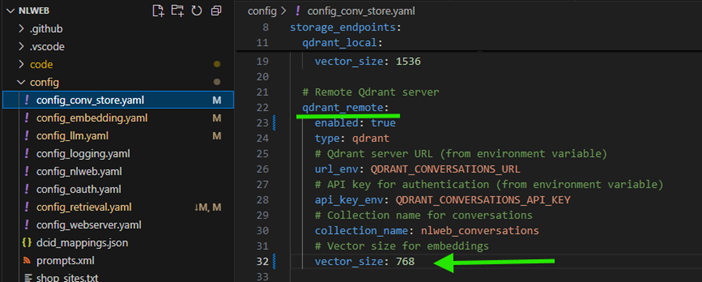
By default, NLWeb's configuration assumes 1536 dimensions (OpenAI's ada-002 size), but Ollama models typically use 768 or 1024. Always verify and match these numbers.
Go back to config/config_conv_store.yaml and ensure:
qdrant_remote:
  vector_size: 768 # Must match the embedding model output
Step 7: Docker Compose Configuration
Now we'll set up both NLWeb and Qdrant as Docker services. Your docker-compose.yaml should look like this:
  services:
  nlweb:
    build:
      context: .
      dockerfile: Dockerfile
    container_name: nlweb
    ports:
      - "8000:8000"
    env_file:
      - .env
    depends_on:
      - qdrant
    environment:
      - PYTHONPATH=/app
      - PORT=8000
      - NLWEB_CONFIG_DIR=/app/config
      - QDRANT_URL=http://qdrant:6333
    volumes:
      - ./data:/app/data
      - ./code/python:/app/python
      - ./config:/app/config:ro
    healthcheck:
      test: ["CMD-SHELL", "python -c \"import urllib.request; urllib.request.urlopen('http://localhost:8000')\""]
      interval: 30s
      timeout: 10s
      retries: 3
      start_period: 10s
    restart: unless-stopped
    user: nlweb

  qdrant:
    image: qdrant/qdrant:latest
    container_name: qdrant
    ports:
      - "6333:6333"
    volumes:
      - ./data/qdrant:/qdrant/storage
    restart: unless-stopped
You can see the changes below;
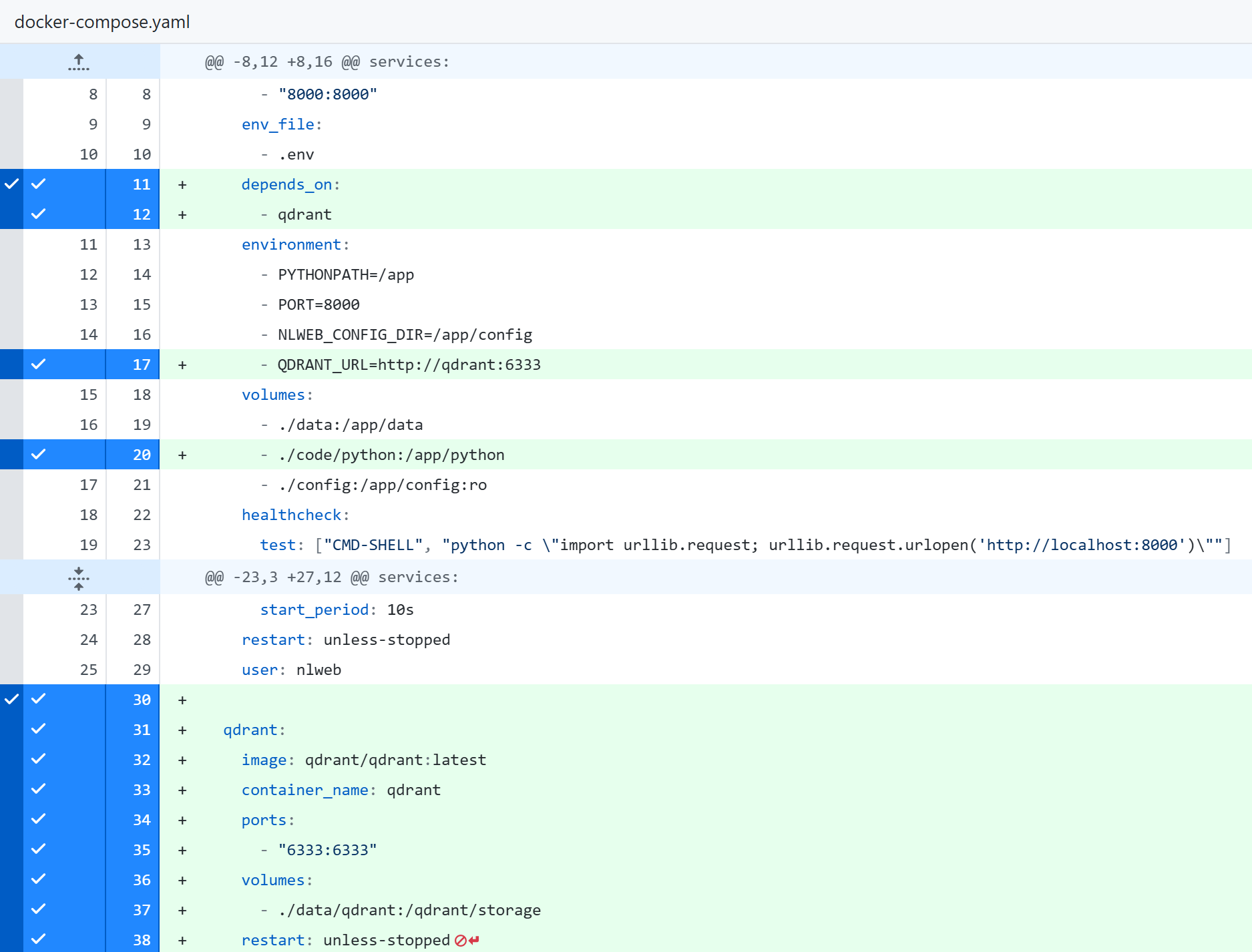
The docker-compose.yaml file defines how NLWeb and Qdrant services work together - including port mappings (8000 for NLWeb's web interface, 6333 for Qdrant's API), volume mounts for persistent data storage, environment variables, and critically the depends_on directive that ensures Qdrant starts before NLWeb attempts to connect to it. This single configuration file replaces dozens of individual docker run commands with a simple docker-compose up that launches your complete AI search infrastructure with proper networking, health checks, and automatic restart policies - making it the blueprint for your entire application architecture.
Understanding the docker-compose.yaml configuration
NLWeb Service:
- Builds from the Dockerfile in the current directory
- Maps port 8000 to your host machine
- Loads environment variables from
.env - Depends on Qdrant (ensures Qdrant starts first)
- Mounts your local
data, code/python, and config directories - Includes health checks to ensure the service is running properly
- Runs as the non-root
nlweb user for security
Qdrant Service:
- Uses the official Qdrant image
- Maps port 6333 for the API (web UI available here too)
- Persists data in
./data/qdrant - Automatically restarts unless explicitly stopped
The depends_on directive ensures Qdrant is available before NLWeb tries to connect, preventing initialization race conditions.
Step 8: Understanding the Dockerfile
While no changes are needed in the Dockerfile, it will be useful to explain its role and what it does.
Your Dockerfile uses a multi-stage build for efficiency and security:
Stage 1 (Builder):
  FROM python:3.13-slim AS builder

# Install build dependencies
RUN apt-get update && \
    apt-get install -y --no-install-recommends gcc python3-dev && \
    pip install --no-cache-dir --upgrade pip && \
    apt-get clean && \
    rm -rf /var/lib/apt/lists/*

WORKDIR /app

# Copy and install requirements
COPY code/python/requirements.txt .
RUN pip install --no-cache-dir -r requirements.txt
This stage installs compilation tools (gcc, python3-dev) needed for packages like numpy or other compiled dependencies, then installs all Python packages.
Stage 2 (Runtime):
  FROM python:3.13-slim AS builder

# Install build dependencies
RUN apt-get update && \
    apt-get install -y --no-install-recommends gcc python3-dev && \
    pip install --no-cache-dir --upgrade pip && \
    apt-get clean && \
    rm -rf /var/lib/apt/lists/*

WORKDIR /app

# Copy and install requirements
COPY code/python/requirements.txt .
RUN pip install --no-cache-dir -r requirements.txt
The multi-stage approach means your final image doesn't contain build tools (reducing size and attack surface), only the runtime dependencies. This is a Docker best practice for production deployments.
Step 9: Build and Launch Your Stack
Time to build the Docker images:
docker-compose build nlweb
This processes the Dockerfile's multi-stage build, installs all dependencies, and creates your NLWeb image. The first build takes a few minutes.
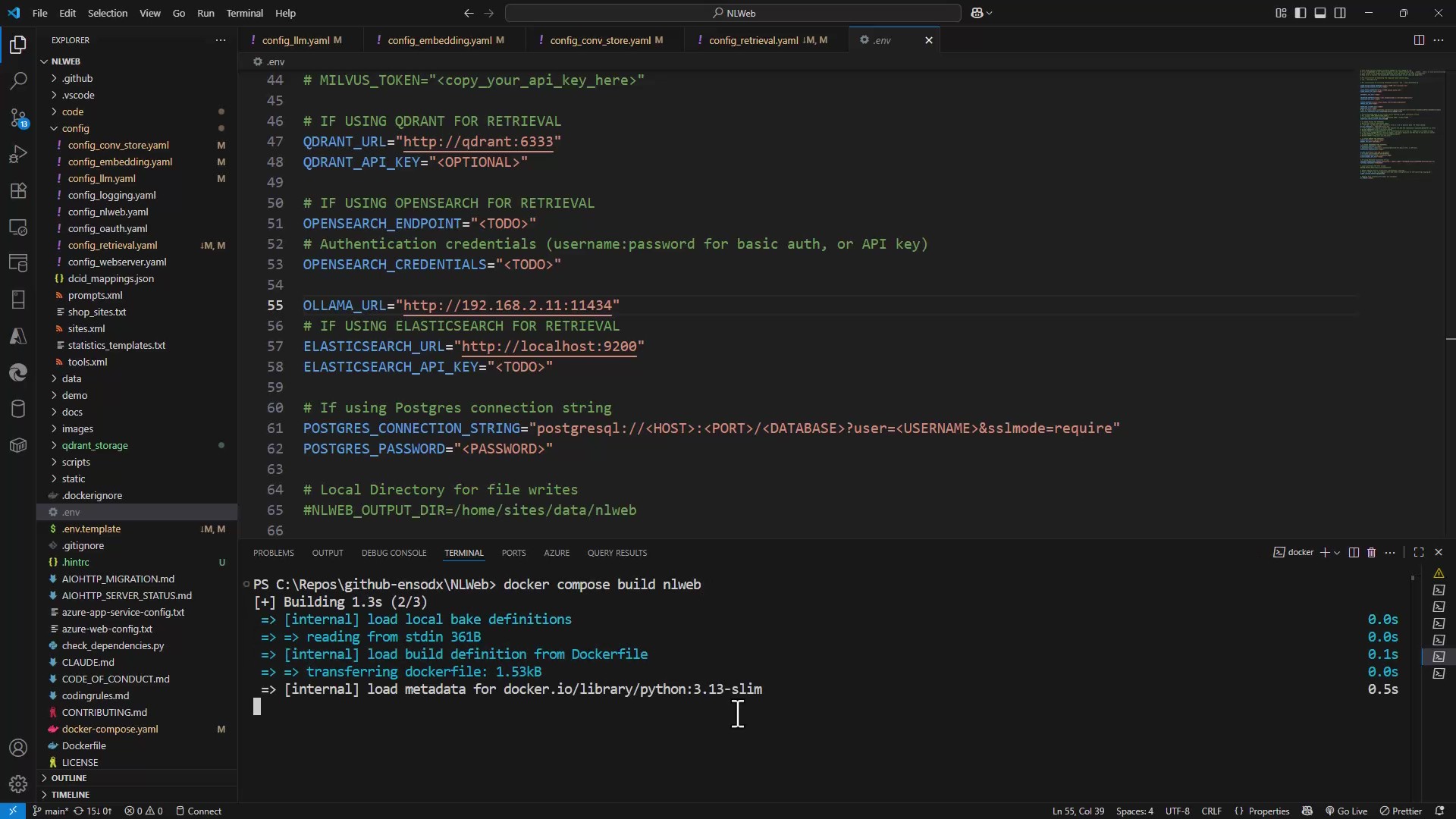
Start both services in detached mode:
docker-compose up -d
The -d flag runs containers in the background, freeing your terminal. Without it, logs stream directly to your terminal and Ctrl+C stops everything.
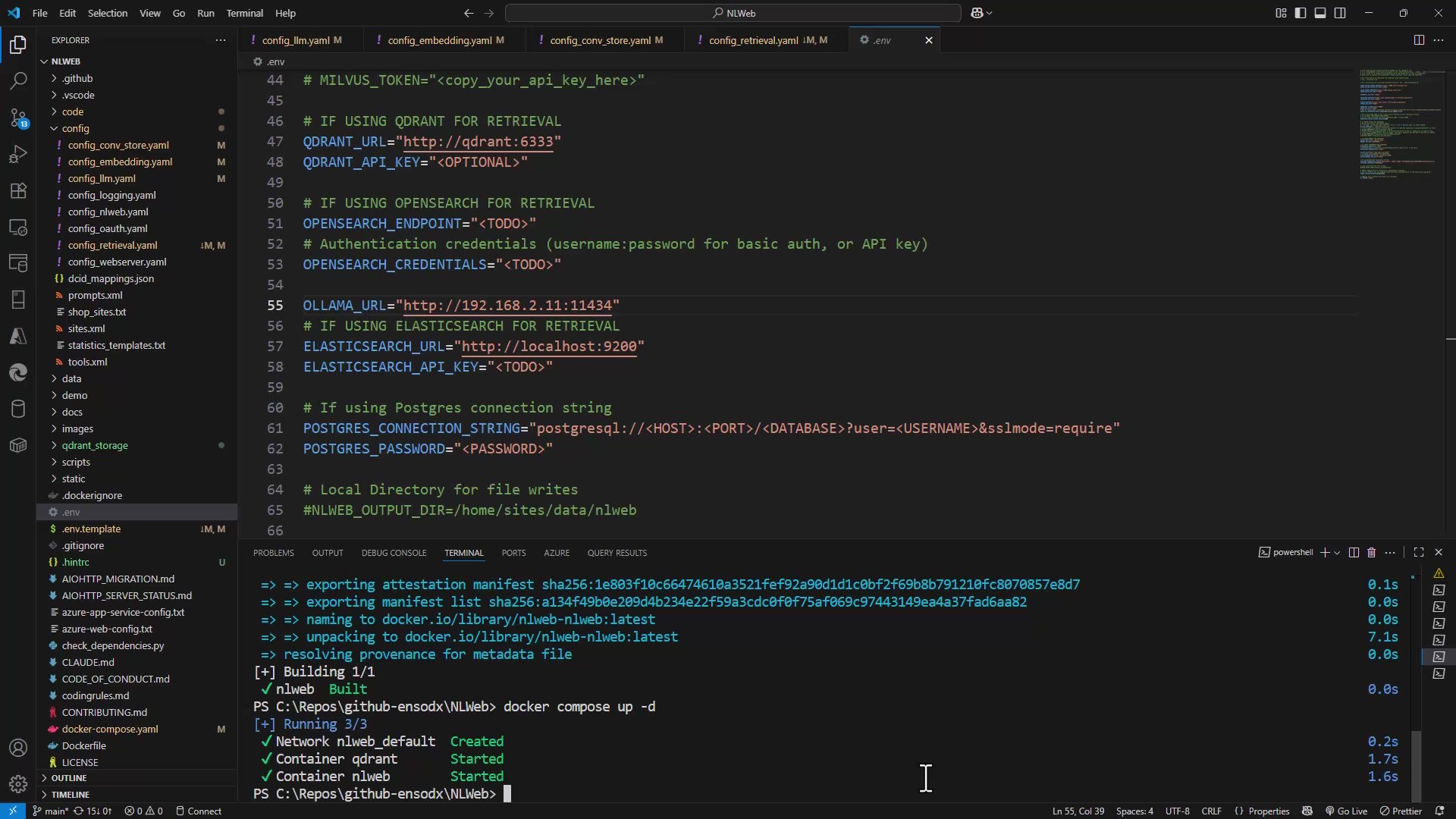
Verify Services Are Running
Check container status:
docker-compose ps
You should see both nlweb and qdrant with status "Up".
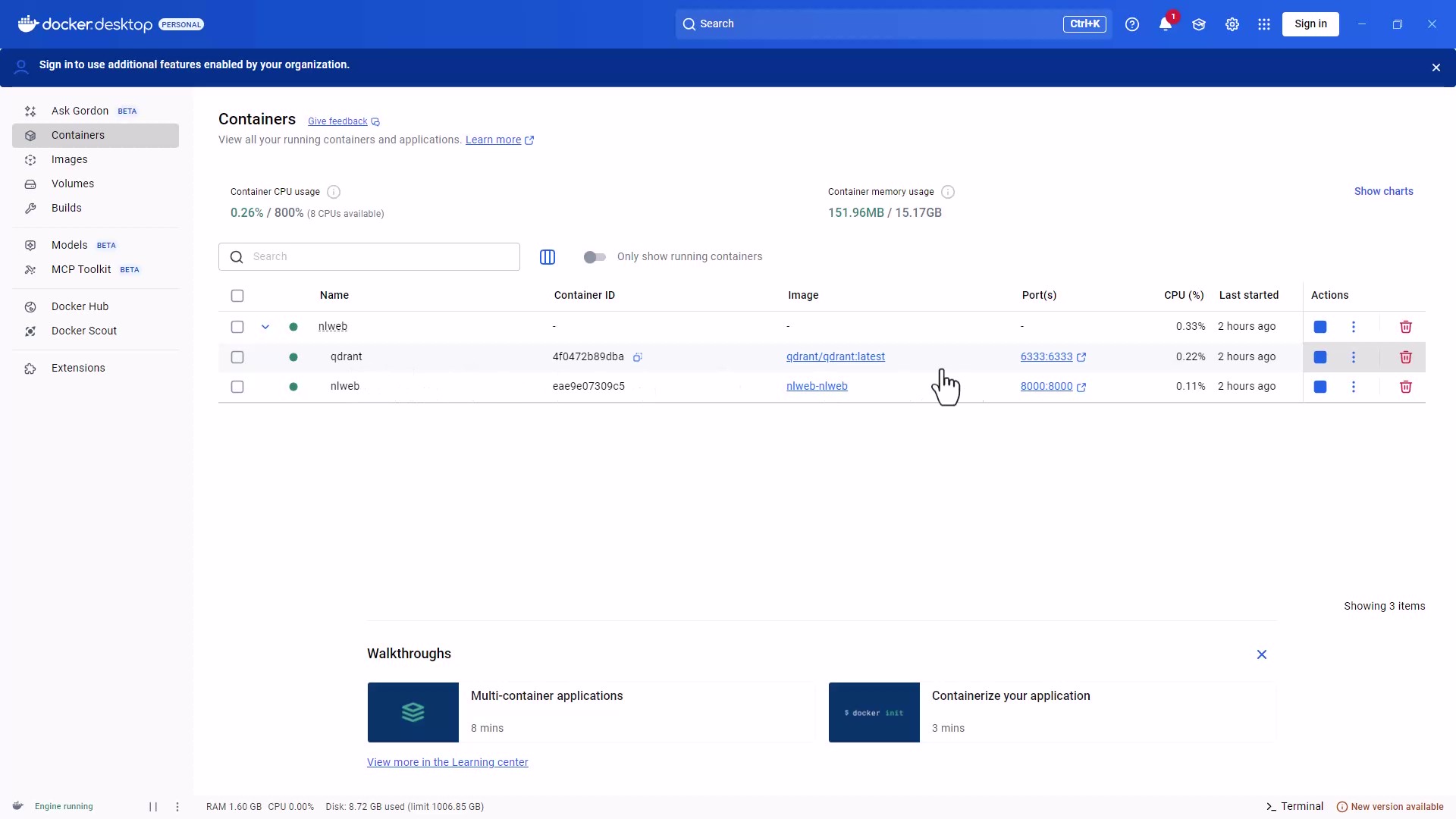
You can also open Docker Desktop to confirm both nlweb and qdrant containers are running successfully. You should see:
In the Containers view:
- qdrant container running on port 6333:6333 (showing the Qdrant vector database)
- nlweb container running on port 8000:8000 (showing the NLWeb application)
- Both containers should have a green status indicator, confirming they're healthy
Quick health check:
Look at the CPU and memory usage - both should be low at idle (typically <1% CPU, under 200MB memory for each container). This confirms the services are running efficiently without consuming excessive resources.
Accessing the Qdrant Web UI:
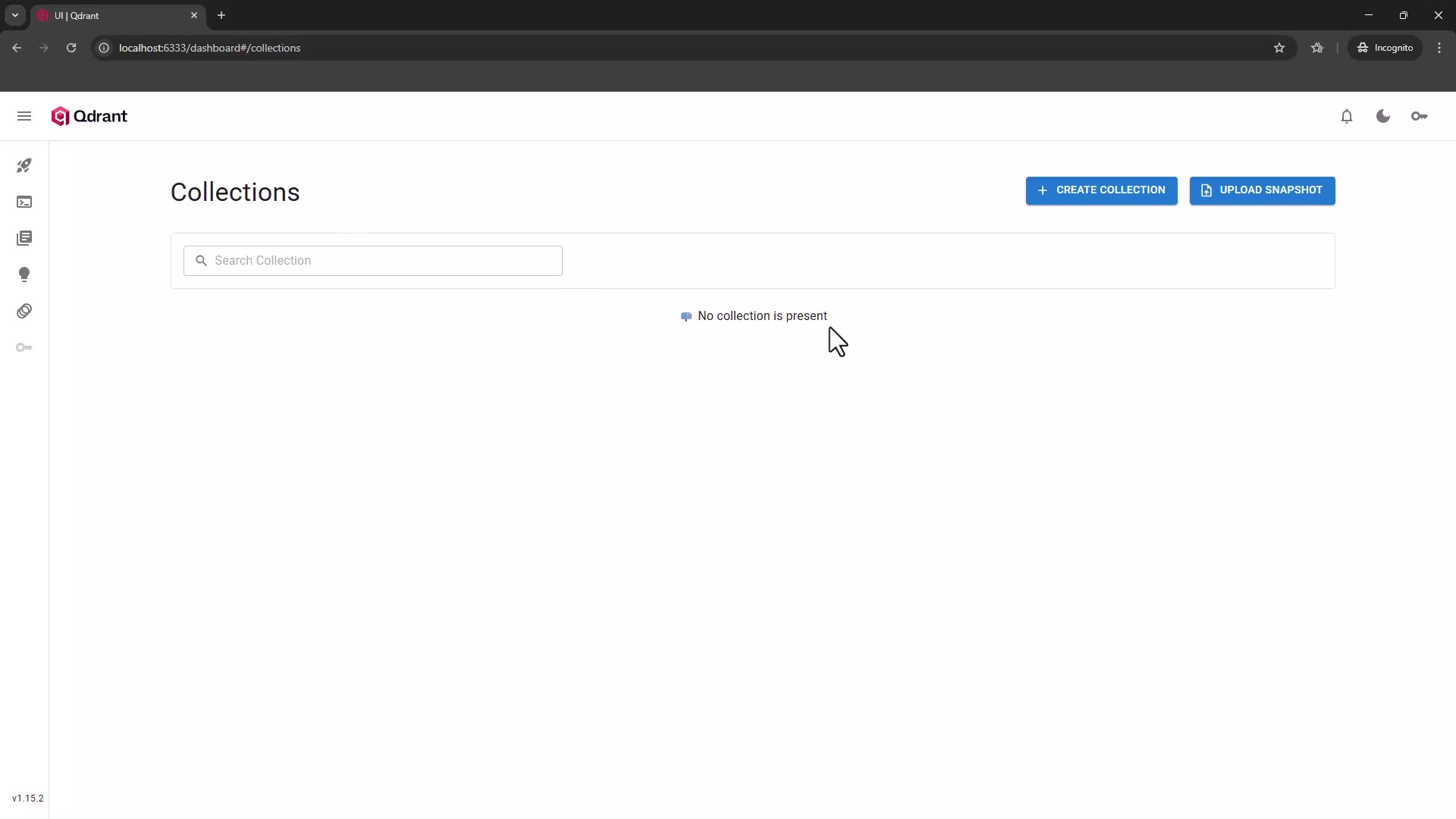
Click on the 6333:6333 port link next to the qdrant container. This opens Qdrant's built-in web interface at http://localhost:6333/dashboard, where you can:
- View your collections (you should see
nlweb_collection after loading data) - Inspect vector dimensions and count
- Monitor database health and performance
- Browse stored points and their metadata
- Run test queries directly against the vector database
This visual confirmation in Docker Desktop is crucial - it shows your entire stack is orchestrated correctly and both services are communicating through Docker's internal network.
View logs if needed:
docker-compose logs -f nlweb
docker-compose logs -f qdrant
The -f flag follows logs in real-time. Press Ctrl+C to exit (containers keep running).
Updating NLWeb
When you modify configuration files or update the code:
docker-compose build nlweb
docker-compose up -d
This rebuilds the image and restarts the container with the new changes.
Stopping the Stack
To stop everything:
docker-compose down
This stops and removes containers but preserves your data volumes.
Step 11: Loading data into your knowledge base
Now that your infrastructure is running, let's feed it some data. NLWeb supports multiple formats and sources.
Understanding the Data Loading Path
Your data loading script is located at code/python/data_loading/db_load.py on your host machine. The Dockerfile copies this to /app/python/data_loading/ inside the container.
To run it correctly, you must:
- Set the working directory to
/app/python (where Python can find the module) - Use the
-m flag to run it as a module: python -m data_loading.db_load
Loading from RSS Feeds
Perfect for blogs, podcasts, or any RSS-enabled content:
docker-compose exec -w /app/python nlweb python -m data_loading.db_load https://feeds.libsyn.com/121695/rss Behind-the-Tech
Breaking down this command:
docker-compose exec: Execute a command in a running container-w /app/python: Set working directory to /app/pythonnlweb: The service name from docker-compose.yamlpython -m data_loading.db_load: Run the loading module- The URL and name parameters
Loading from JSON Files (Sitefinity FAQs)
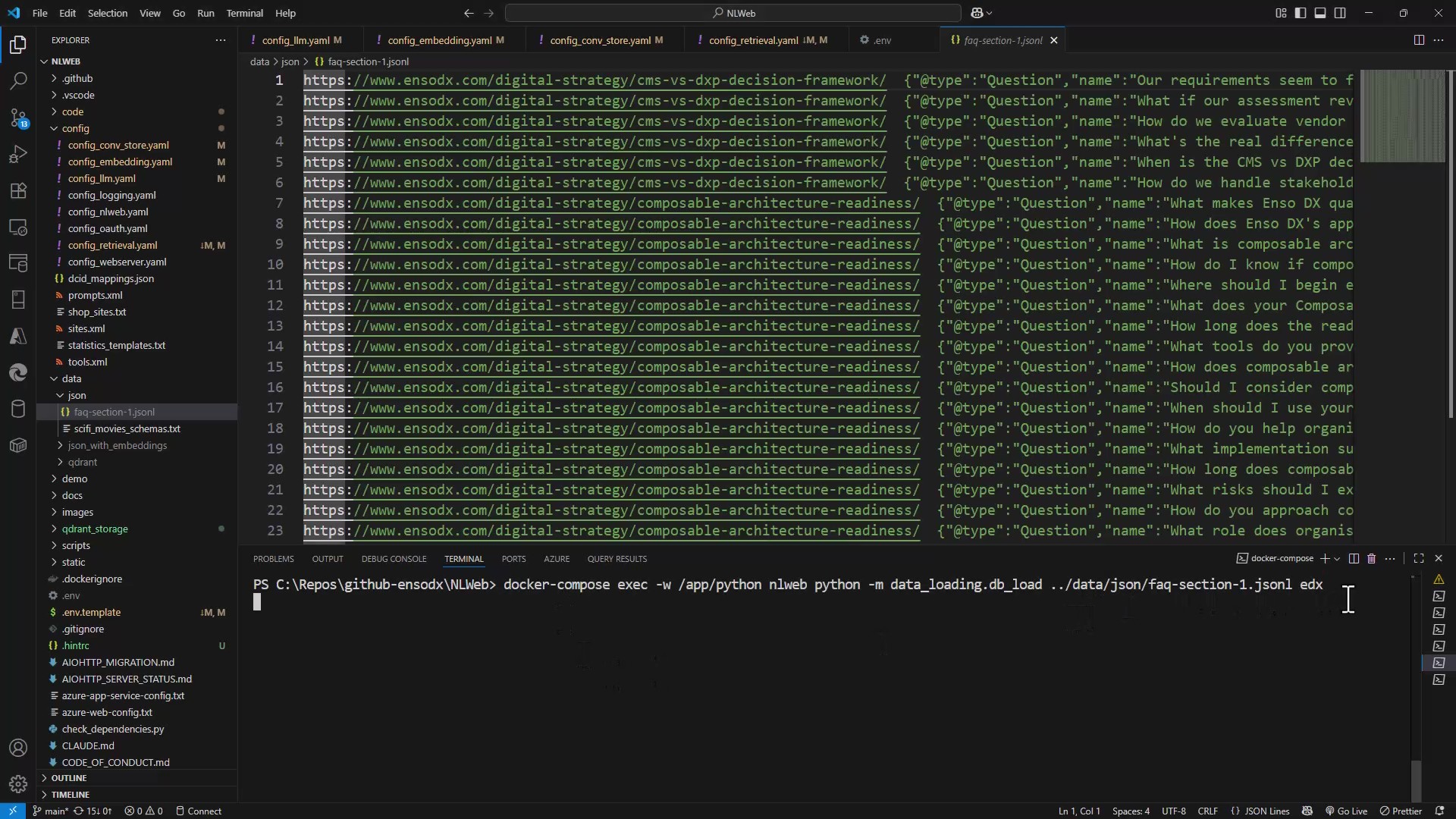
Place your JSON file in the data/json/ directory, then load it:
docker-compose exec -w /app/python nlweb python -m data_loading.db_load ../data/json/faq-section-1.jsonl edx
The relative path ../data/json/ works because we're executing from /app/python, and the data directory is mounted at /app/data.
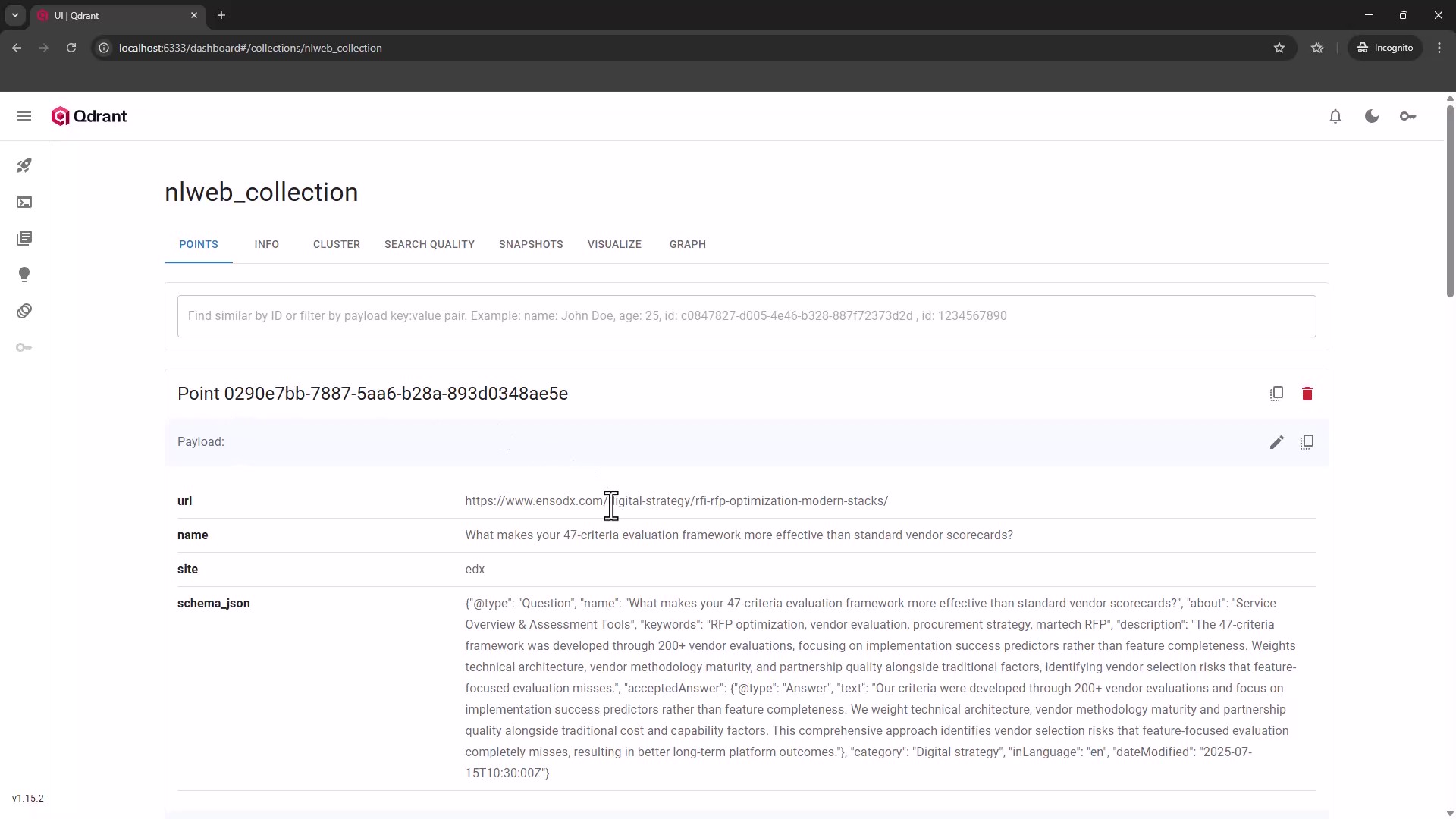
Example JSON structure for FAQs:
{
  "@type": "Question",
  "name": "How does RFP optimization fit into broader digital strategy?",
  "acceptedAnswer": {
    "@type": "Answer",
    "text": "RFP optimization ensures vendor selection decisions support comprehensive digital transformation objectives..."
  }
}
Loading from Text Files (News Articles)
For plain text content:
docker-compose exec -w /app/python nlweb python -m data_loading.db_load ../data/json/news.txt news
Controlling Batch Size
Large datasets can overwhelm the system. Use --batch-size to control how many items are processed at once:
docker-compose exec -w /app/python nlweb python -m data_loading.db_load ../data/json/news.txt news --batch-size 20
The default batch size is 100. Reduce it if you see memory issues or timeout errors.
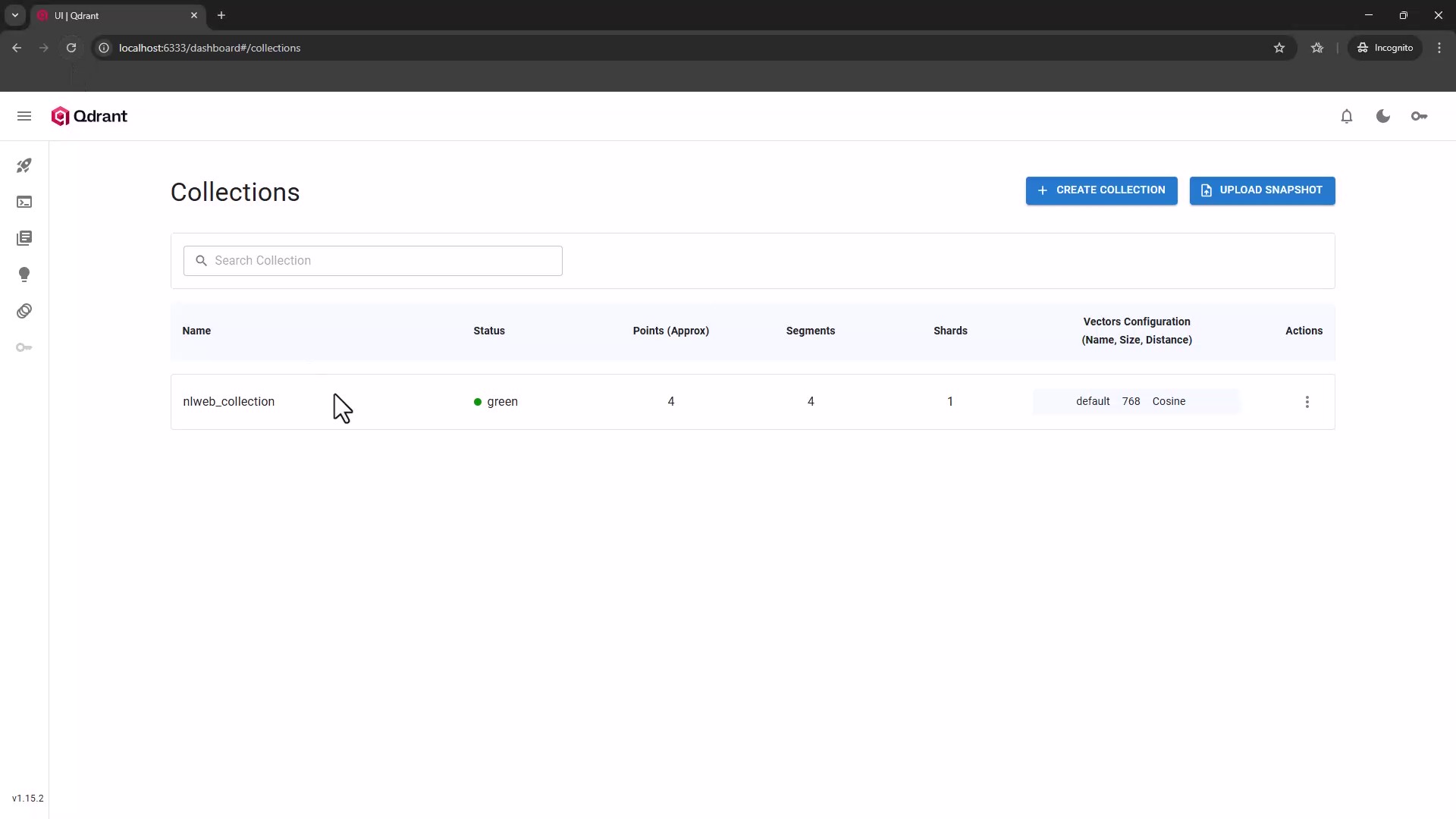
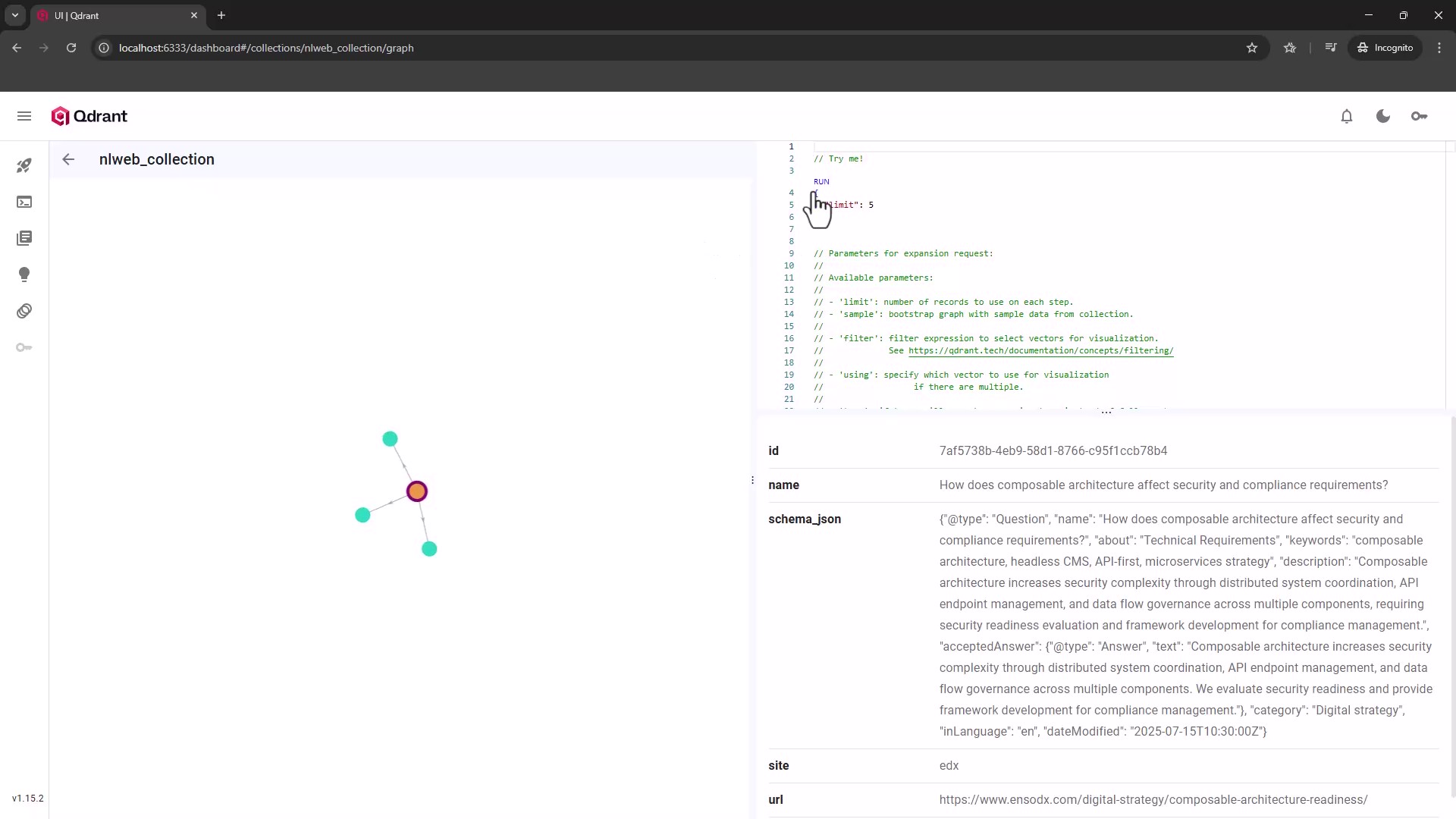
Verify the imported data in Qdrant dashboard
Go back to http://localhost:6333/dashboard to see the collections, inspect points, and etc.
Step 12: Testing Your Search Engine
Web Interface
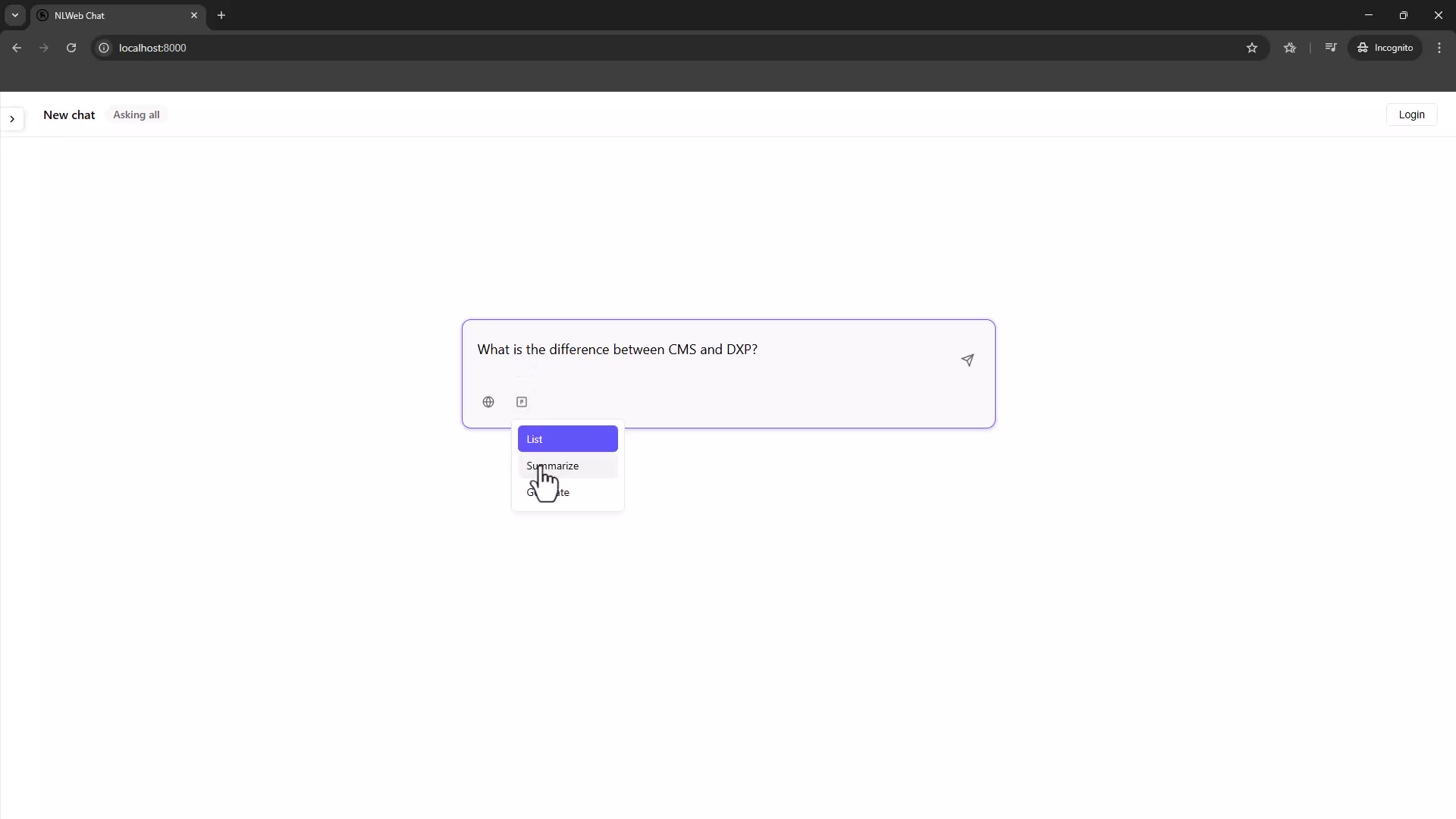
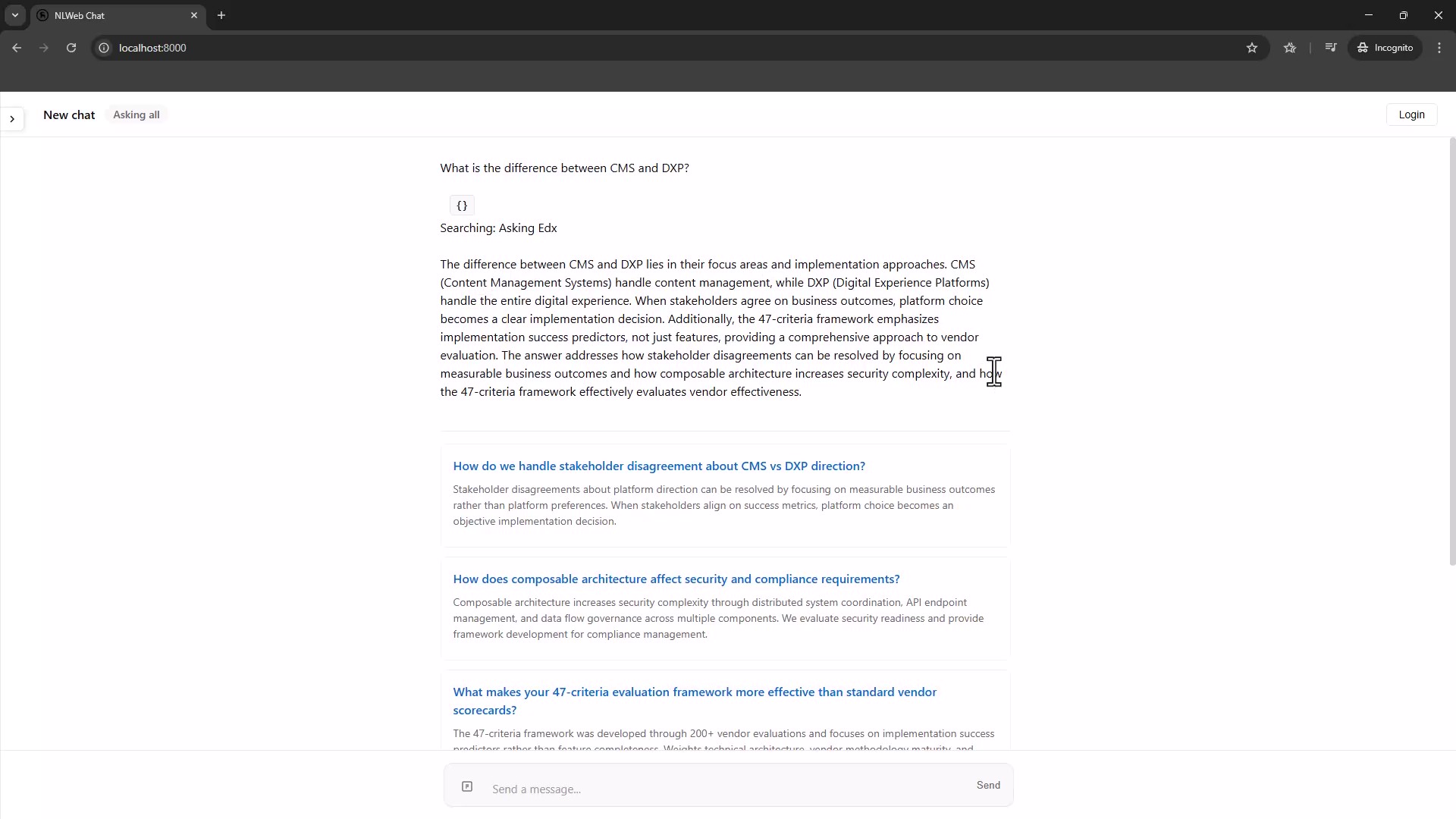
Visit http://localhost:8000 in your browser. You should see the NLWeb search interface. Try a query related to your loaded content.
The interface provides multiple display modes:
- Summarize: Get an AI-generated summary of results
- Full: See complete documents with highlighting
- List: Quick overview of matching items
Understanding the Response
The API returns streaming data with different message types:
data: {"message_type": "retrieval_count", "query": "cms", "count": 4}
data: {"message_type": "tool_selection", "selected_tool": "search", "score": 100}
data: {"message_type": "result_batch", "results": [...]}
data: {"message_type": "complete"}
This streaming approach allows the frontend to show results progressively as they're found.
Step 13. Integrating with Sitefinity .NET Core
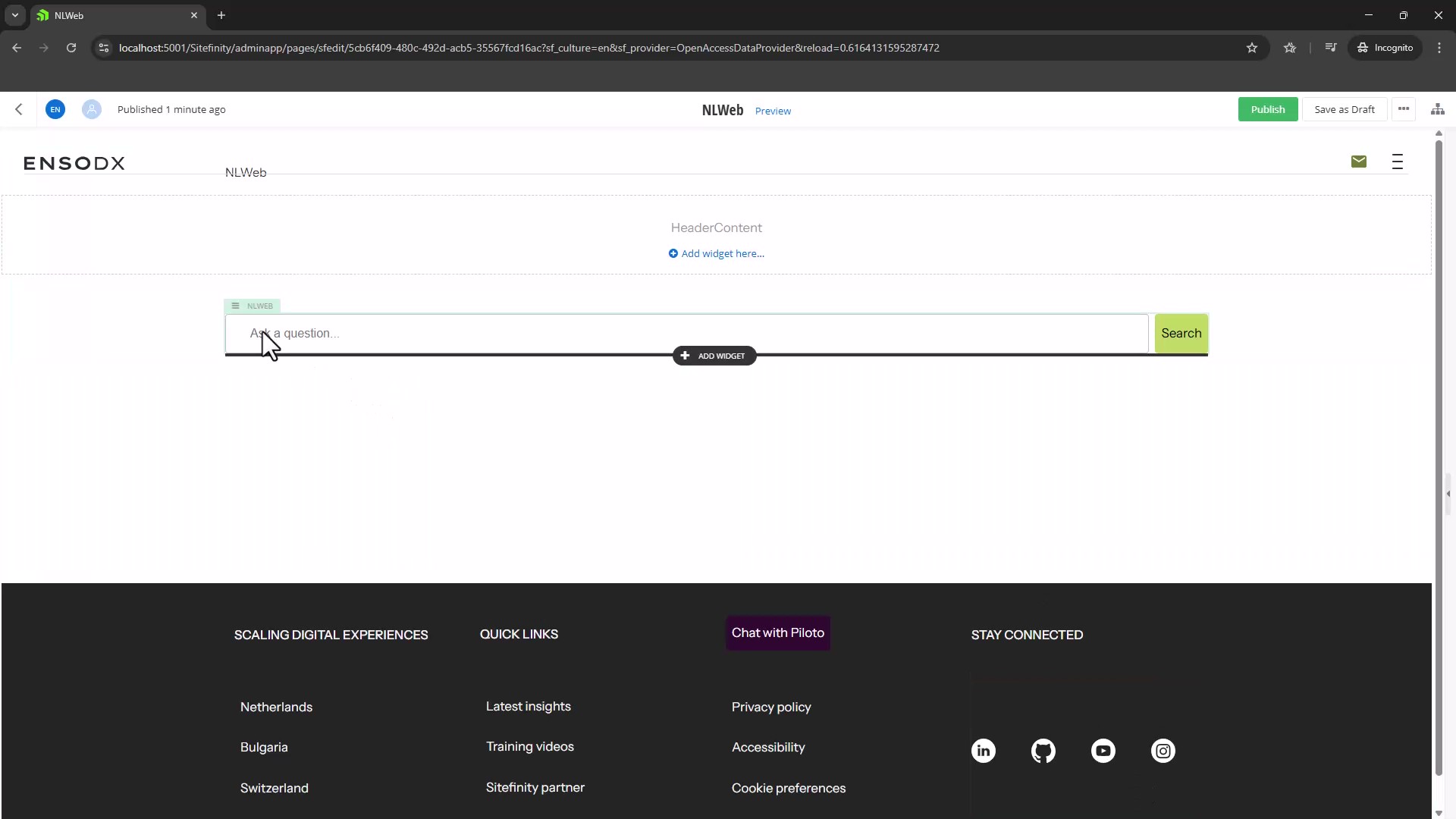
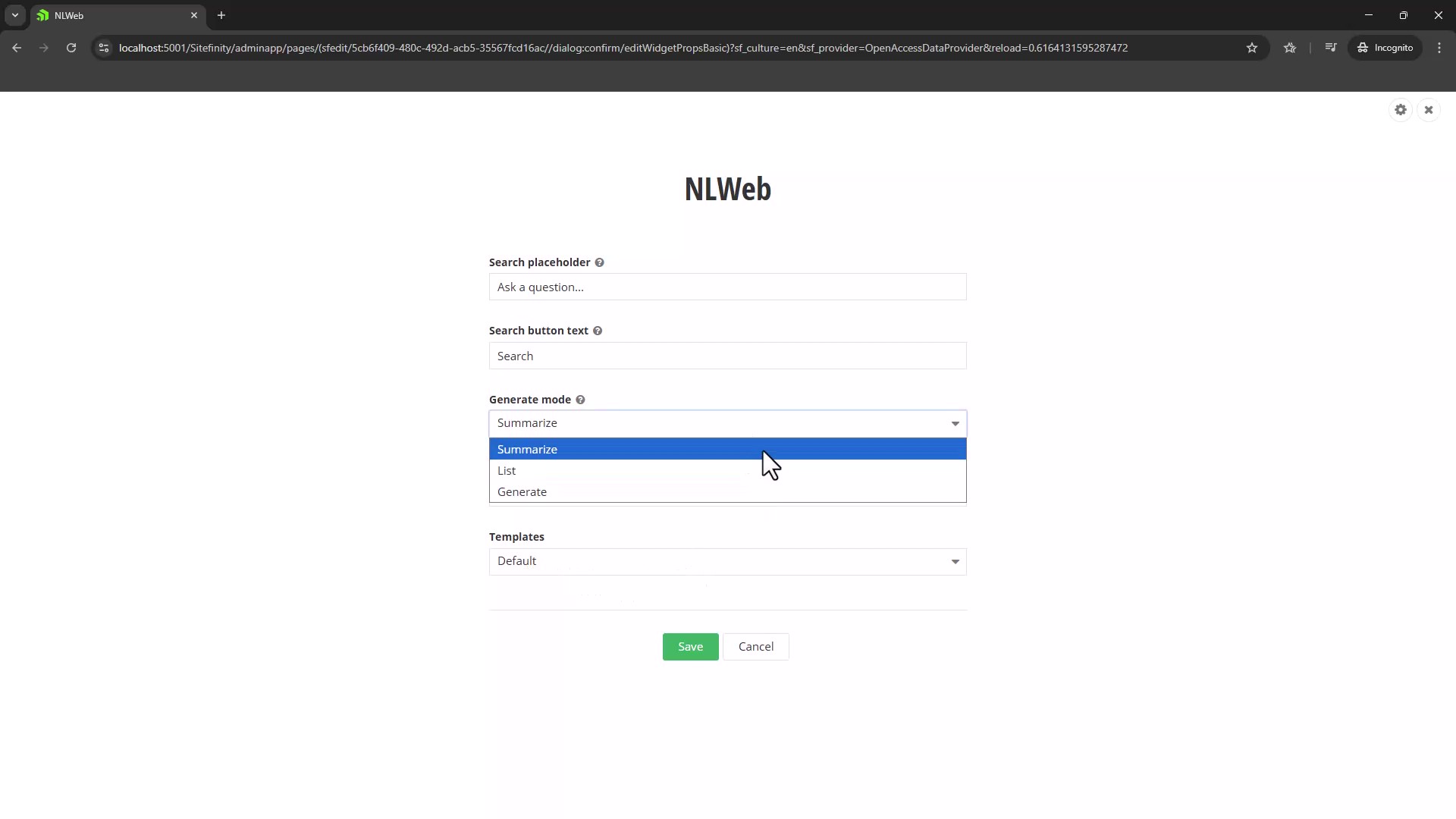
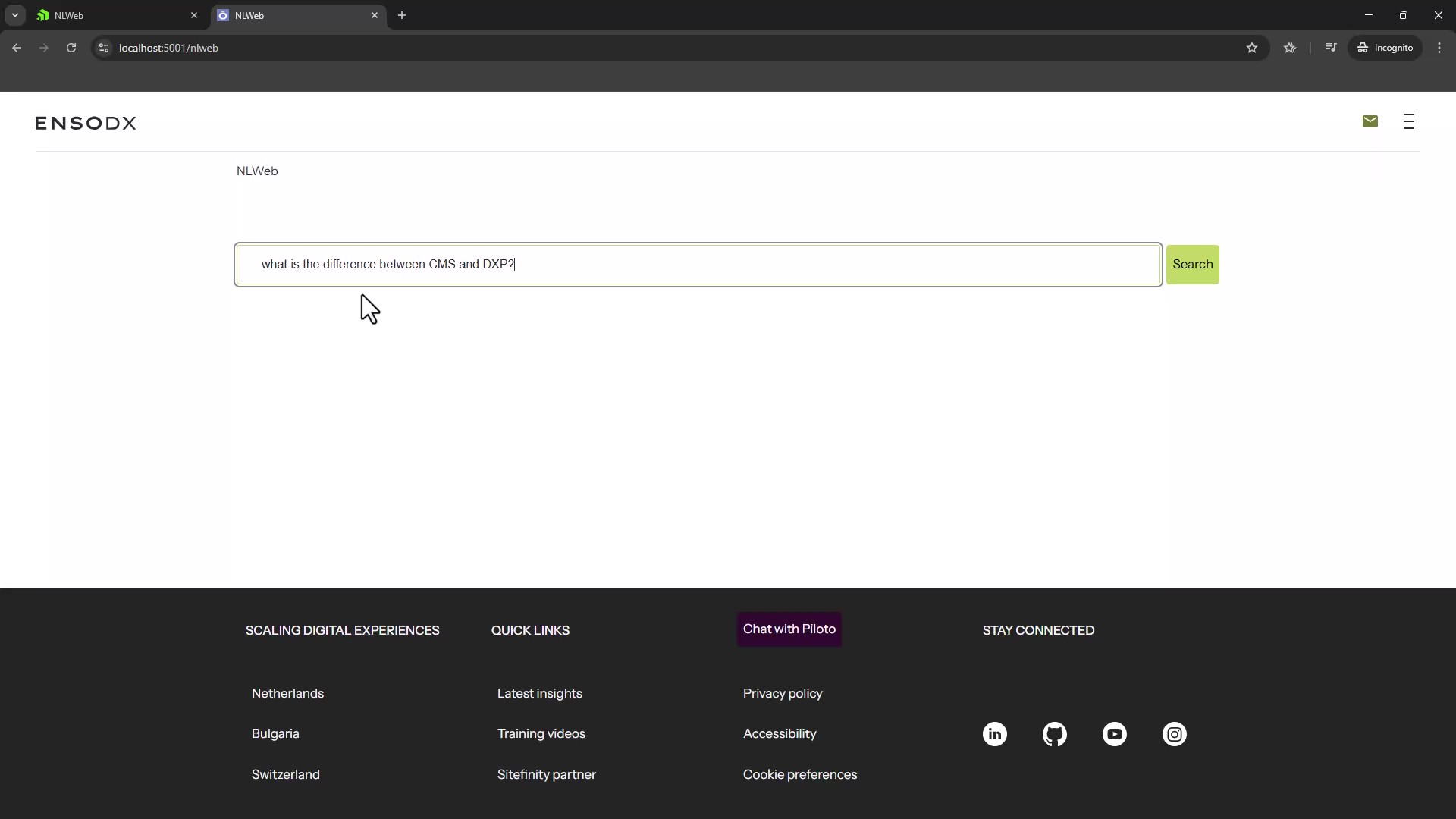
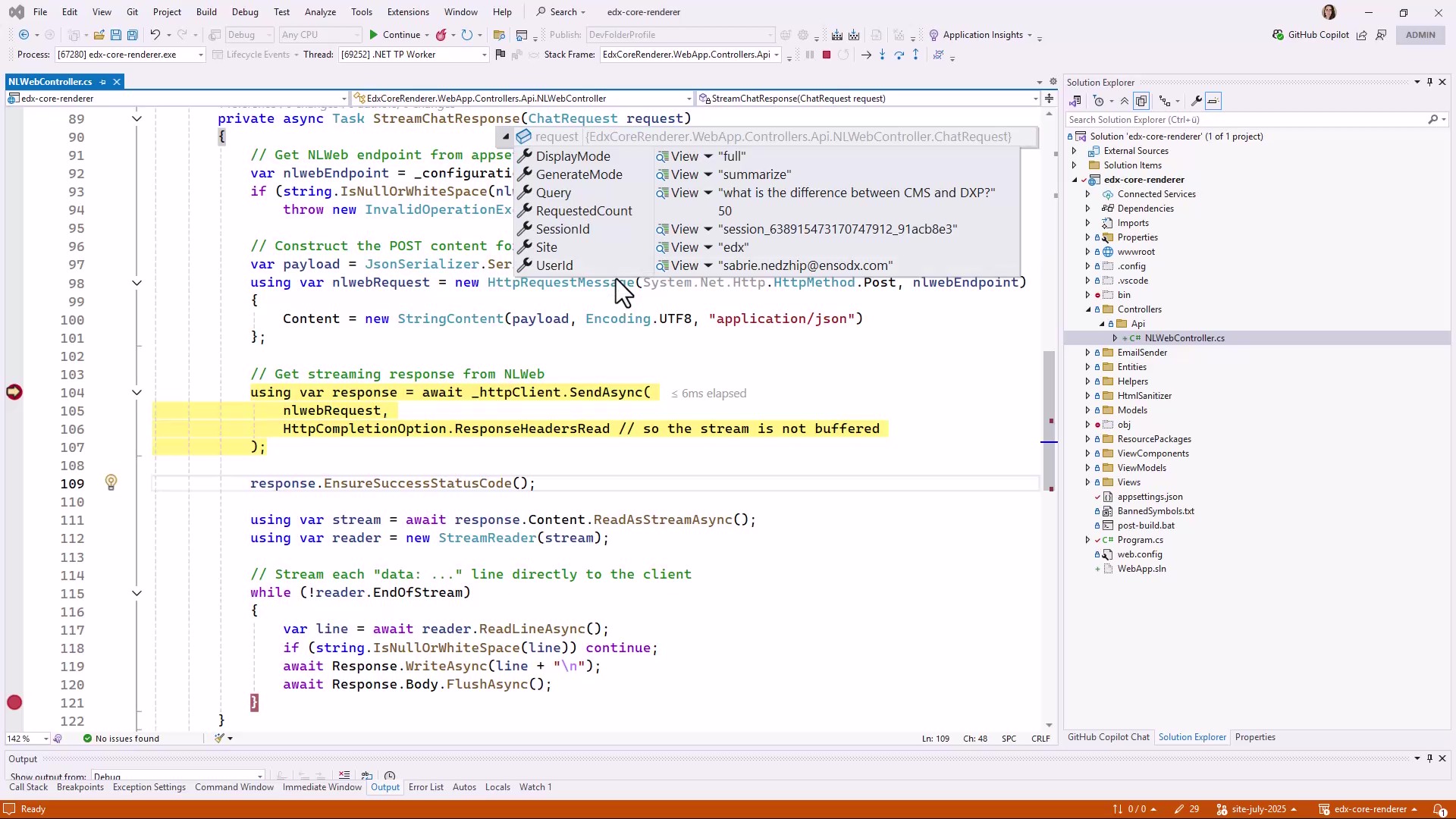
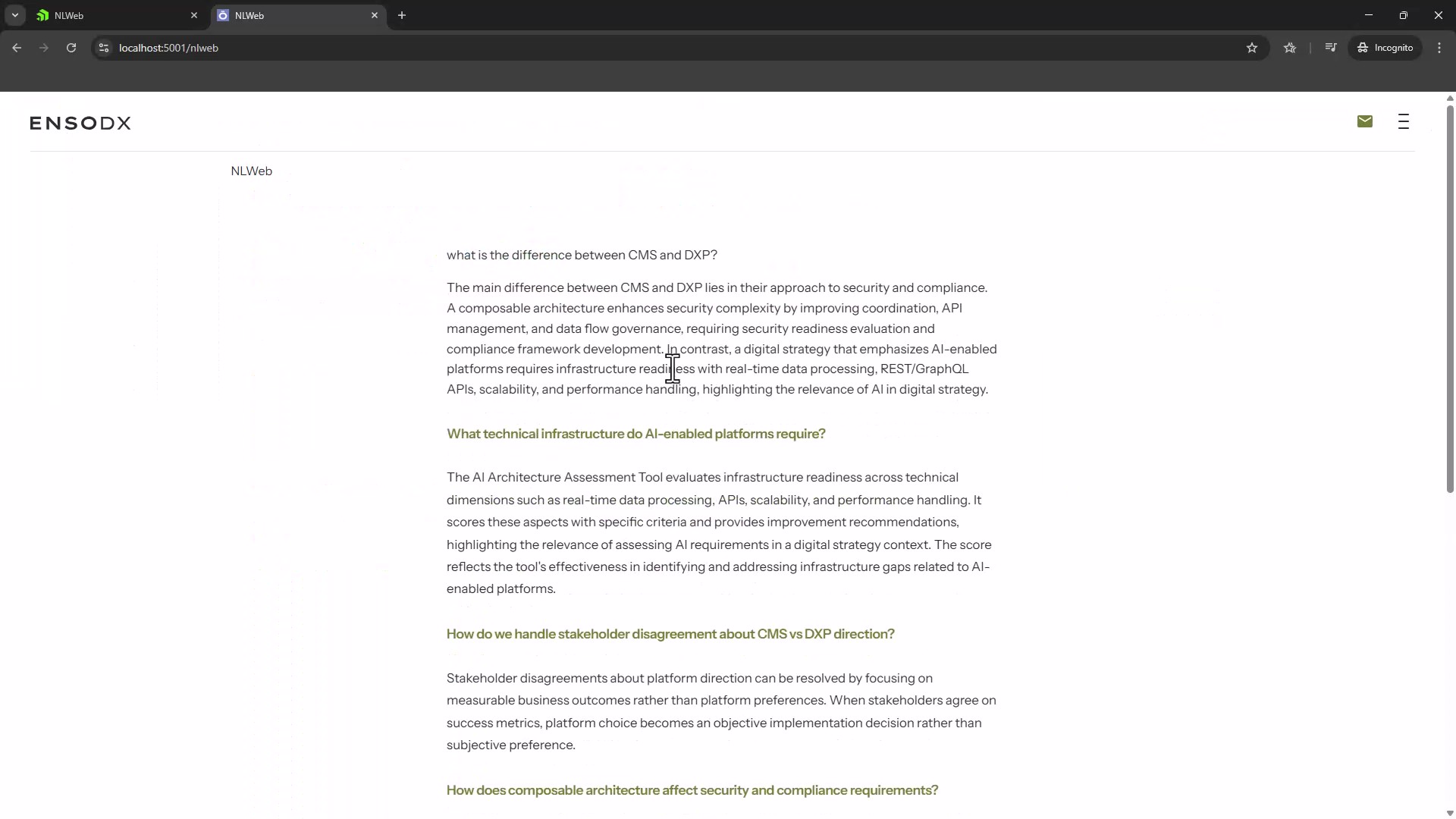
Now that your NLWeb search engine is running, integration with Sitefinity is straightforward. We've created a custom Sitefinity NLWeb widget that connects directly to your local or remote NLWeb instance using the /ask API endpoint, allowing content editors to add intelligent search functionality to any page through Sitefinity's familiar widget interface. This means your Sitefinity-powered website can now offer semantic search across your entire content repository—FAQs, news articles, documentation, and more - without complex development work, simply by dropping the widget onto a page and configuring the NLWeb endpoint URL.
And that's it
You've successfully built a production-ready AI search engine from scratch. This isn't just a tutorial project - it's a foundation you can build on, customize, and deploy to solve real problems.
The stack you've assembled (NLWeb + Ollama + Qdrant + Docker) represents modern best practices for AI-powered search systems:
- Open source components give you control and flexibility
- Containerization ensures consistency across environments
- Vector search provides semantic understanding beyond keywords
- LLM integration enables conversational, context-aware responses
- Modular architecture allows you to swap components as needs evolve
Most importantly, you now understand how these pieces fit together. When you need to troubleshoot, optimize, or extend the system, you have the knowledge to do so confidently.
Whether you're building internal tools, customer-facing applications, or research prototypes, this foundation scales with your needs. Start small, validate the approach, then expand as you learn what works for your specific use case.
The AI search landscape continues evolving rapidly, but the fundamentals you've learned here - embeddings, vector databases, LLM orchestration - will remain relevant. You're well-positioned to adapt as new models, techniques, and tools emerge.
Now go build something amazing. Your AI-powered search engine awaits its first real users.
Common Issues and Solutions
Below are some of the issues we experienced during the implementation, their root causes and the solution. The solutions are included in the above tutorial, however we thought it would be useful if we have the issues explained separately in case you missed configuring something and face issues.
Issue 0: Visitinghttp://localhost:8000 returns a 404
Root cause: There's no root route configured. The backend API is running, but there's no homepage mapped to.
Solution: Add Static File Serving
Edit code/python/webserver/aiohttp_server.py and modify the create_app method to include static file serving. Add these imports at the top:
from aiohttp import web
import os
Then update the create_app method (around line 111):
async def create_app(self) -> web.Application:
    """Create and configure the aiohttp application"""
    # Create application with proper settings
    app = web.Application(
        client_max_size=1024**2 * 10,  # 10MB max request size
    )

    # Store config in app for access in handlers
    app['config'] = self.config

    # --- ADD THIS BLOCK TO SERVE STATIC FILES ---
    static_path = os.path.abspath(
        os.path.join(os.path.dirname(__file__), '..', '..', 'static')
    )
    app.router.add_static('/static/', static_path, name='static')
    # ------------------------------------------

    # This way http://localhost:8000/ will serve index.html directly
    async def root_handler(request):
        return web.FileResponse(os.path.join(static_path, 'index.html'))

    app.router.add_get('/', root_handler)
    # ------------------------------------------

    # Setup middleware
    from .middleware import setup_middleware
    setup_middleware(app)

    # Setup routes
    from .routes import setup_routes
    setup_routes(app)

    # Setup startup and cleanup handlers
    app.on_startup.append(self._on_startup)
    app.on_cleanup.append(self._on_cleanup)
    app.on_shutdown.append(self._on_shutdown)

    # Setup client session for outgoing requests
    app['client_session'] = None

    return app
This configuration:
- Serves files from the
static/ directory at the /static/ URL path - Maps the root URL
/ to serve index.html directly - Allows your frontend to load properly when you visit
http://localhost:8000
Issue 1: "No module named 'ollama'"
Symptom:
ERROR - Failed to load provider for ollama: No module named 'ollama'
ValueError: No valid endpoints available for search
Root Cause: The Ollama Python package wasn't installed during the Docker build.
Solution:
- Edit
code/python/requirements.txt - Ensure
ollama>=0.5.1 is uncommented - Rebuild and restart:
docker-compose build nlweb
docker-compose up -d
Verification: Check the logs - you should see "LLM API connectivity check successful for ollama" during startup.
Issue 2: Vector Size Mismatch / OutputTooSmall Error
Symptom:
qdrant_client - ERROR: Unexpected Response: 500 (Internal Server Error)
OutputTooSmall
ValueError: All endpoint searches failed
Root Cause: Your embedding model produces vectors of size X, but Qdrant collection expects size Y.
Solution:
- Check your embedding model's vector size (PowerShell):
$response = Invoke-RestMethod -Uri http://192.168.2.11:11434/api/embeddings -Method Post -Body '{"model":"nomic-embed-text","prompt":"test"}' -ContentType "application/json"
$response.embedding.Count
- Update
config/config_conv_store.yaml:
qdrant_remote:
  vector_size: 768  # Match the number from step 1
- Delete the existing collection (your data will be lost):
curl -X DELETE http://localhost:6333/collections/nlweb_collection
- Restart and reload data:
docker-compose restart nlweb
# Re-run your data loading commands
Issue 3: Timeout Errors During LLM Operations
Symptom:
TimeoutError: Operation timed out after 8 seconds
Root Cause: LLM operations, especially with larger models, can take longer than the default 8-second timeout.
Solution:
Edit code/python/core/llm.py around line 162:
Timeout: int = 60 # Increased from 8
Rebuild and restart:
docker-compose build nlweb
docker-compose up -d
Issue 4: Container Can't Reach Qdrant
Symptom:
ConnectionError: Cannot connect to Qdrant at http://qdrant:6333
Diagnosis:
Test connectivity from inside the container:
docker-compose exec nlweb python -c "import requests; print(requests.get('http://qdrant:6333').json())"
You should see:
{'title': 'qdrant - vector search engine', 'version': '1.15.2', ...}
Solutions:
- Ensure
depends_on: - qdrant is in your docker-compose.yaml - Verify Qdrant container is running:
docker-compose ps - Check the QDRANT_URL environment variable uses the service name:
QDRANT_URL=http://qdrant:6333 - Restart both services:
docker-compose restart
Issue 5: Data Loading Path Errors
Symptom:
python: can't open file '/app/data_loading/db_load.py': [Errno 2] No such file or directory
Root Cause: Incorrect working directory or module path.
Solution:
Always use the correct command format:
docker-compose exec -w /app/python nlweb python -m data_loading.db_load [args]
The -w /app/python flag is crucial because:
- Your code is at
/app/python/data_loading/db_load.py - Python needs to be in
/app/python to find the data_loading module - The
-m flag runs it as a module (not a direct file path)
ai