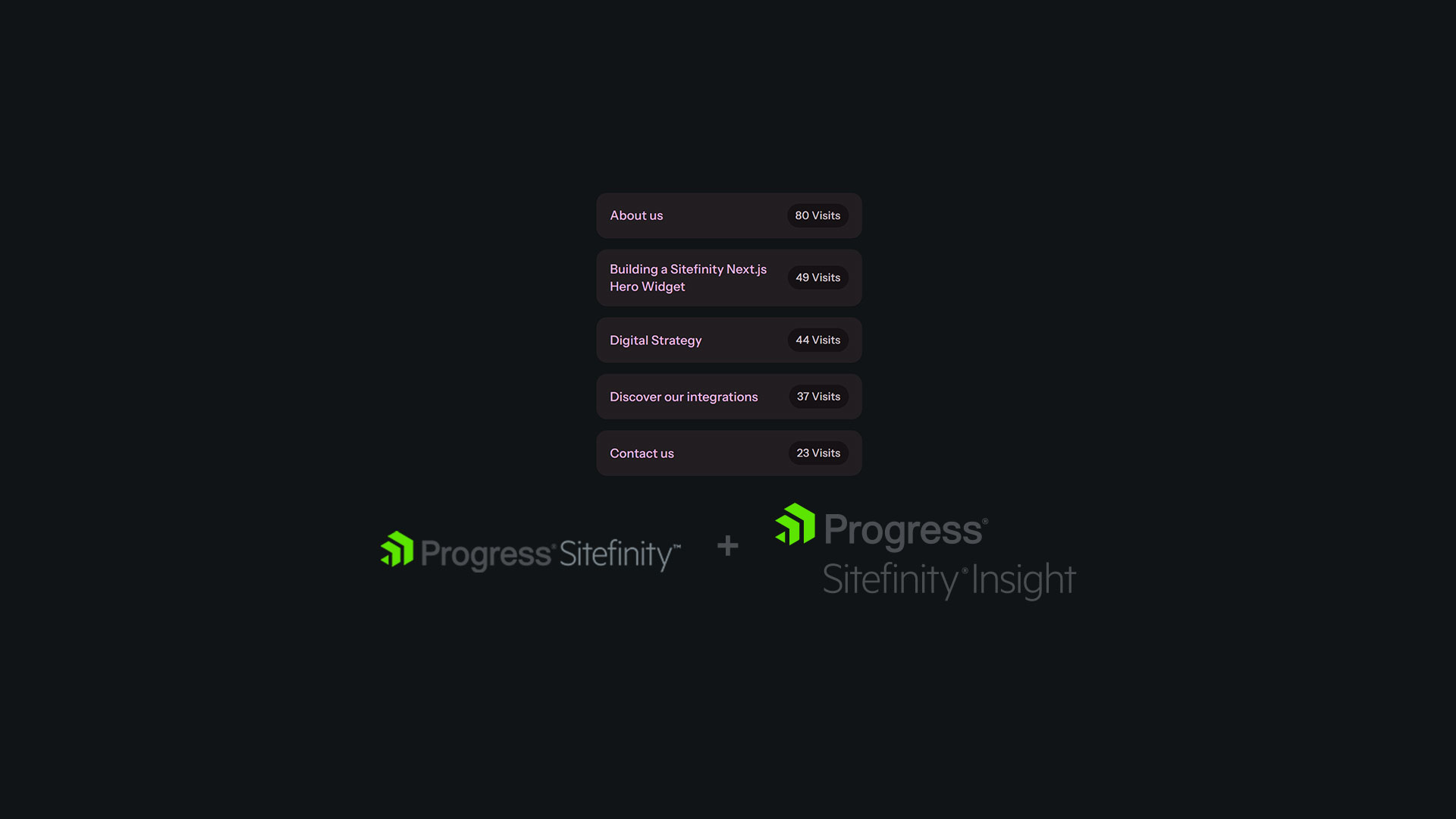
Understanding which pages resonate most with your audience is crucial for any content strategy. While Sitefinity Insights provides powerful analytics through its dashboard, wouldn't it be great to surface that data directly on your site? That's exactly what we'll build today - a custom Sitefinity .NET Core widget that connects to the Sitefinity Insights API and displays your most visited pages right where your content editors need to see them.
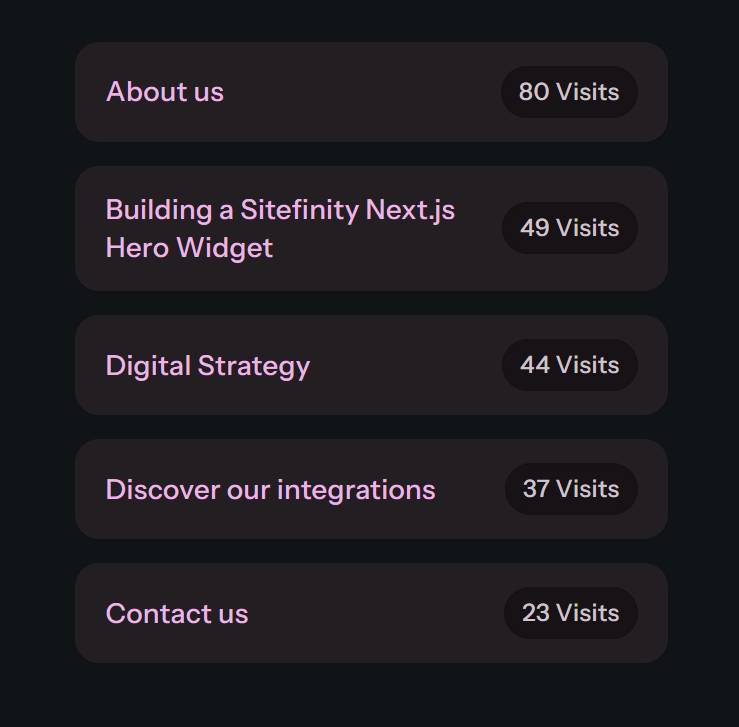
What We're Building
This widget fetches analytics data from Sitefinity Insights and displays the top 5 most visited pages on your site. Content editors can configure the time period they want to analyze - from yesterday's traffic to all-time statistics - and the widget handles the rest.
The best part? Once configured, it updates automatically, giving your team real-time visibility into what's working.
Setting Up the Foundation
Before we dive into the code, let's talk about what we need. The Sitefinity Insights API requires two pieces of configuration: an Access Key and a Data Center API Key. You can store these securely in your appsettings.json:
"SitefinityInsights": {
    "AccessKey": "your-access-key-here",
    "DataCenterApiKey": "your-datacenter-key-here"
}
You can also use user secrets. For production environments, use Azure Key Vault or Azure App Configuration instead of user secrets or IIS environment variables.
These credentials allow our widget to authenticate with the Insights API and retrieve your analytics data.
Building the entity
An entity in a Sitefinity widget defines what content editors can configure from the widget designer. For our Sitefinity Insights widget, we're keeping it simple with two options:
- the time period to analyze
- the view selector
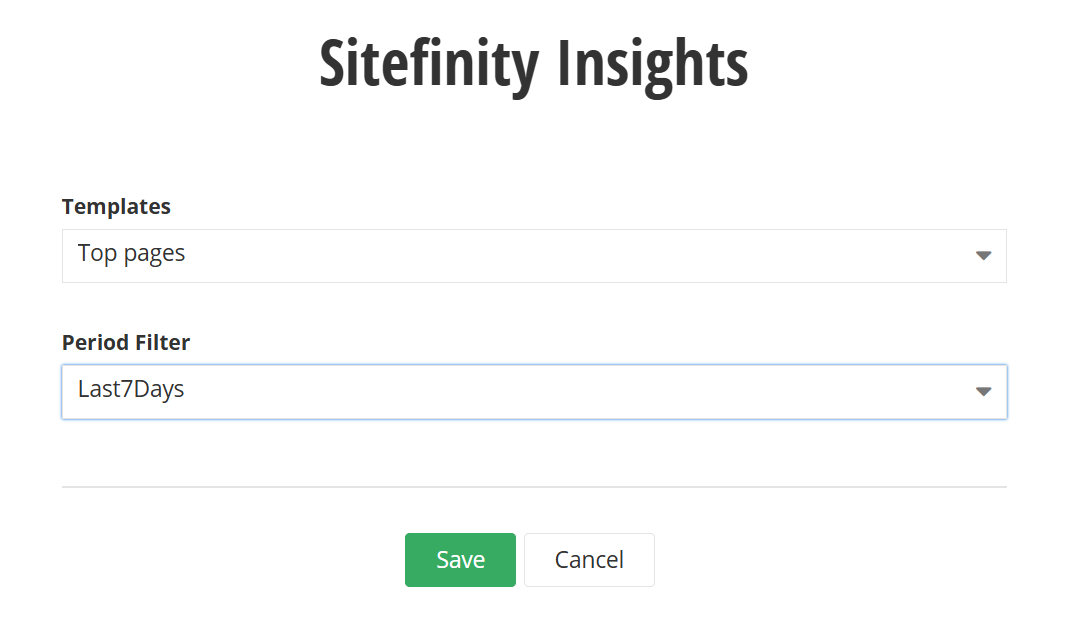
Here is the code for the entity:
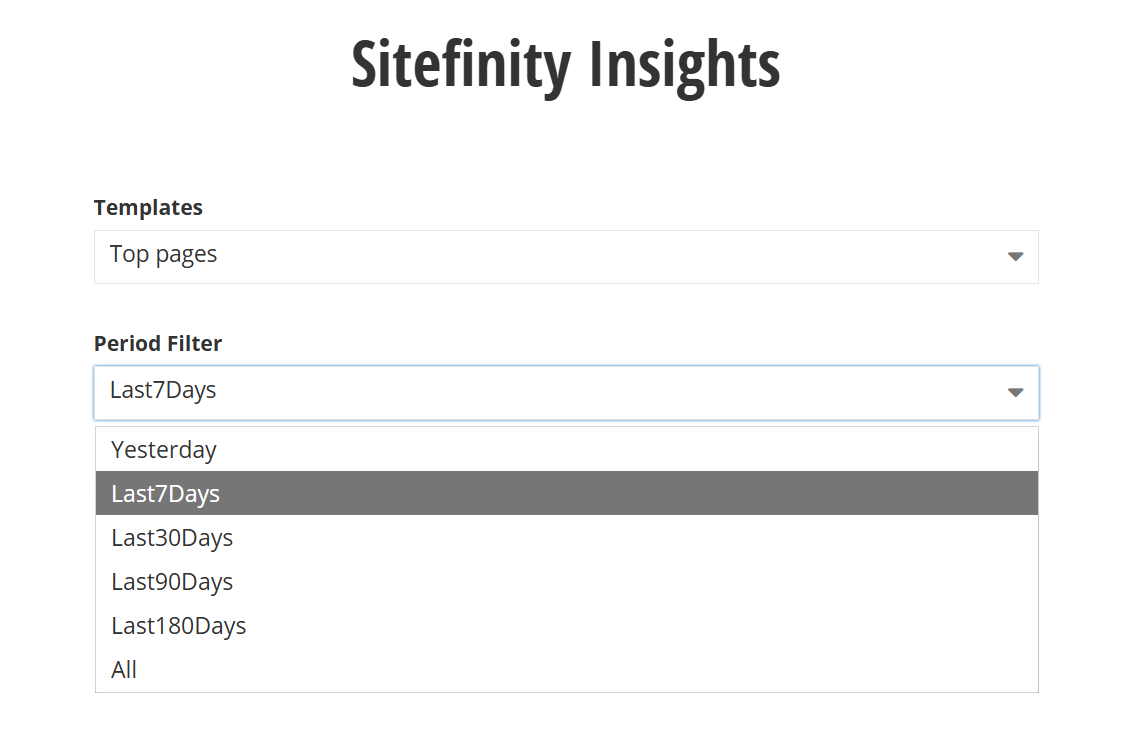
The PeriodFilter enum gives editors flexibility to chose the time period - the top pages visited the day before, the last 7 days and etc.
Building the Service to talk to Sitefinity Insights
Here's where the integration happens. Our SitefinityInsightsService handles all the API communication, which involves a two-step process: first obtaining an access token, then using that token to fetch the actual analytics data.
Let's break it down
The GetAccessTokenAsync method exchanges your Access Key for a temporary bearer token. This is a common OAuth-style pattern that keeps your credentials secure - instead of sending your Access Key with every request, you use it once to get a token.
Once we have the token, GetTopPagesAsync does the heavy lifting. Notice how we're setting up the HTTP headers carefully - the API expects JSON, and we're telling it we can handle compressed responses (gzip, deflate, or Brotli) to keep things fast.
The content report URL is constructed dynamically using both the Data Center API Key and the period filter. When the response comes back, we extract just the items array from the JSON - that's where our page data lives.
Building the ViewModel to structure our data
The API returns quite a bit of information about each page. Our ViewModel maps this data into a format that's easy to work with in our views.
Each property here represents a metric: how many times the page was visited (TotalHits), how many unique visitors it had (UniqueHits), when it was last accessed, and how long people stayed engaged with it.
This gives content editors a complete picture of page performance.
Building the View Component
This is where we register our widget in the Sitefinity .NET Core widget toolbox, we fetch the data, clean it up, and prepare it for display.
Data Retrieval and Processing
The InvokeAsync method starts by grabbing our configuration values and calling the Insights service. Once we have the raw data, we deserialize it into our ViewModel objects.
But here's the thing: analytics data can be messy. The same page might appear multiple times with slight URL variations - maybe one entry has a query string, another has a trailing slash. That's not helpful when we're trying to identify top pages.
Grouping by base url
This is why we group the items by the base URL path, stripping away query strings and normalizing trailing slashes. This way, /about-us, /about-us/, and /about-us?source=email all get treated as the same page - which they are, functionally speaking.
Aggregation and Filtering
For each unique URL, we aggregate the metrics. Total hits get summed, we take the most recent LastHitDate, and we calculate the average engagement time. This gives us one clean record per page with combined statistics.
The filtering step is where you'd customize things for your site. In this example, we're excluding the home page. Adjust these conditions to match your needs - maybe you want to include blog posts only, or exclude certain sections.
Finally, we sort by total hits and take the top 5. You could make this number configurable from the widget designer if you wanted more flexibility.
Building the View to display the results
With all this processing done, the View Component passes the filtered, aggregated data to our Razor view.
Registering the Service
Don't forget to register the SitefinityInsightsService in your dependency injection container in your Program.cs:
Using AddHttpClient ensures that the HttpClient lifecycle is properly managed and prevents common issues such as socket exhaustion caused by repeatedly creating new instances.
Using the Widget
Once everything is in place, content editors can add the widget to any Sitefinity .NET Core page through the Sitefinity backend UI. The editor only selects the desired time period from the widget designer. Everything else is handled automatically from the widget.
What's Next?
This widget gives you a solid foundation, but there's room to extend it. Here are some ideas:
- Making the number of displayed pages configurable from the widget designer
- In the view display additional data (average engagement time, last hit date, etc.)
- Create different visualization templates (charts, sparklines, etc.)
The beauty of building custom widgets is that you can tailor them exactly to your team's needs.
That's it!
We have a custom widget in our Sitefinity .NET Core project that shows data from Sitefinity Insight.
If you’d like help implementing a similar widget in your own Sitefinity project, or adapting this approach to your setup, feel free to reach out - we’re happy to help.
Happy coding!
getting things done, sitefinity